Prerequisites
- OpsRamp and HPE GreenLake Data Services Cloud Console (DSCC) services are recommended to be in the same workspace for Data Services customers seeking to use OpsRamp for centralized observability.
- Users should have access and be able to launch OpsRamp and DSCC services in the same workspace.
- OpsRamp should support webhook verification based on HMAC (Hash-based Message Authentication Code) with SHA-256, a cryptographic hashing algorithm.
Case scenario
Let us consider a scenario where a storage device’s file system volume breaches critical threshold and triggers alerts. These alerts flow into OpsRamp, for correlation and incident notification to the appropriate stakeholders.
OpsRamp proactively executes an automated remediation script that can reduce the file system volume size.
Configure HPE DSCC integration
Click here to see the steps to configure and install the integration:
Create a webhook on OpsRamp
Login to OpsRamp.
To select your client, navigate to All Clients, and click the Client/Partner dropdown menu.
Note: You may either type your client’s name in the search bar or select your client from the list.Navigate to Setup → Account. The Account Details screen is displayed.
Select the Integrations tile.
The Installed Integrations screen is displayed, with all the installed applications. Click + ADD on the Installed Integrations page.
If you do not have any installed applications, you will be navigated to the Available Integrations page. The Available Integrations page displays all the available applications along with the newly created application with the version.
Note: Search for the application using the search option available. Alternatively, use the All Categories option to search.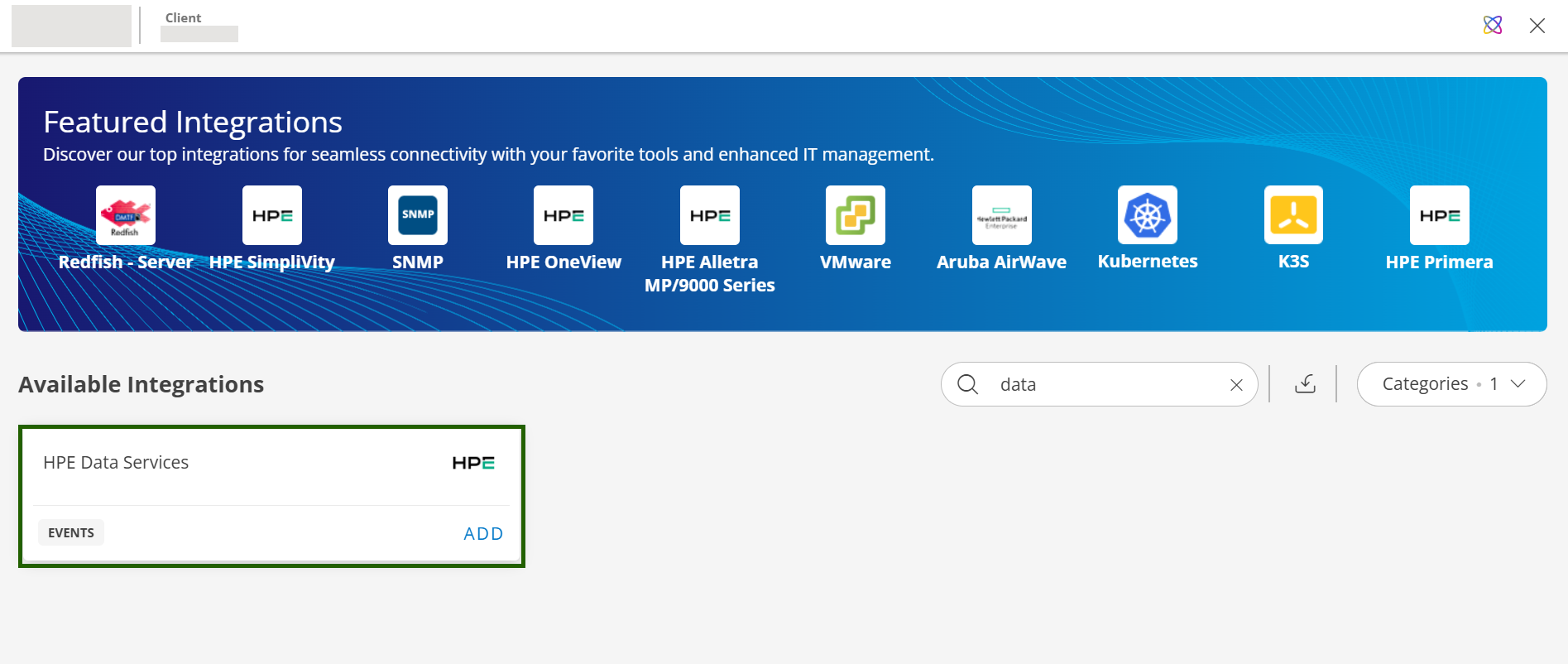
Click +ADD on the HPE Compute Ops Management tile.
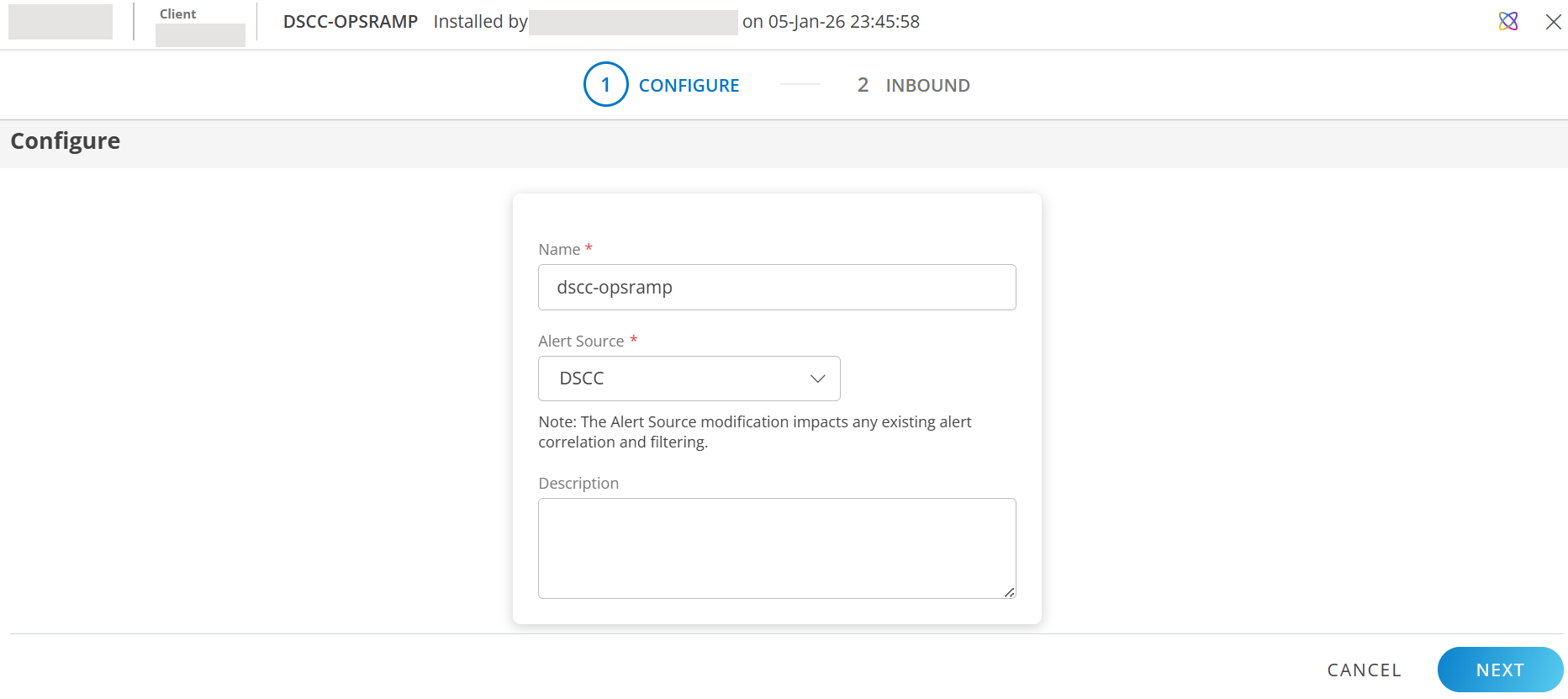
Enter the following information:

CONFIGURE
Field Name Field Type Description Name String Enter a unique name for the integration. Alert Source Dropdown DSCC (selected by default). Indicates that the alert originated from the source, i.e. DSCC.
The Source column in Alerts browser displays DSCC.Description String Provide a description for the integration. Click NEXT. The INBOUND screen is displayed.
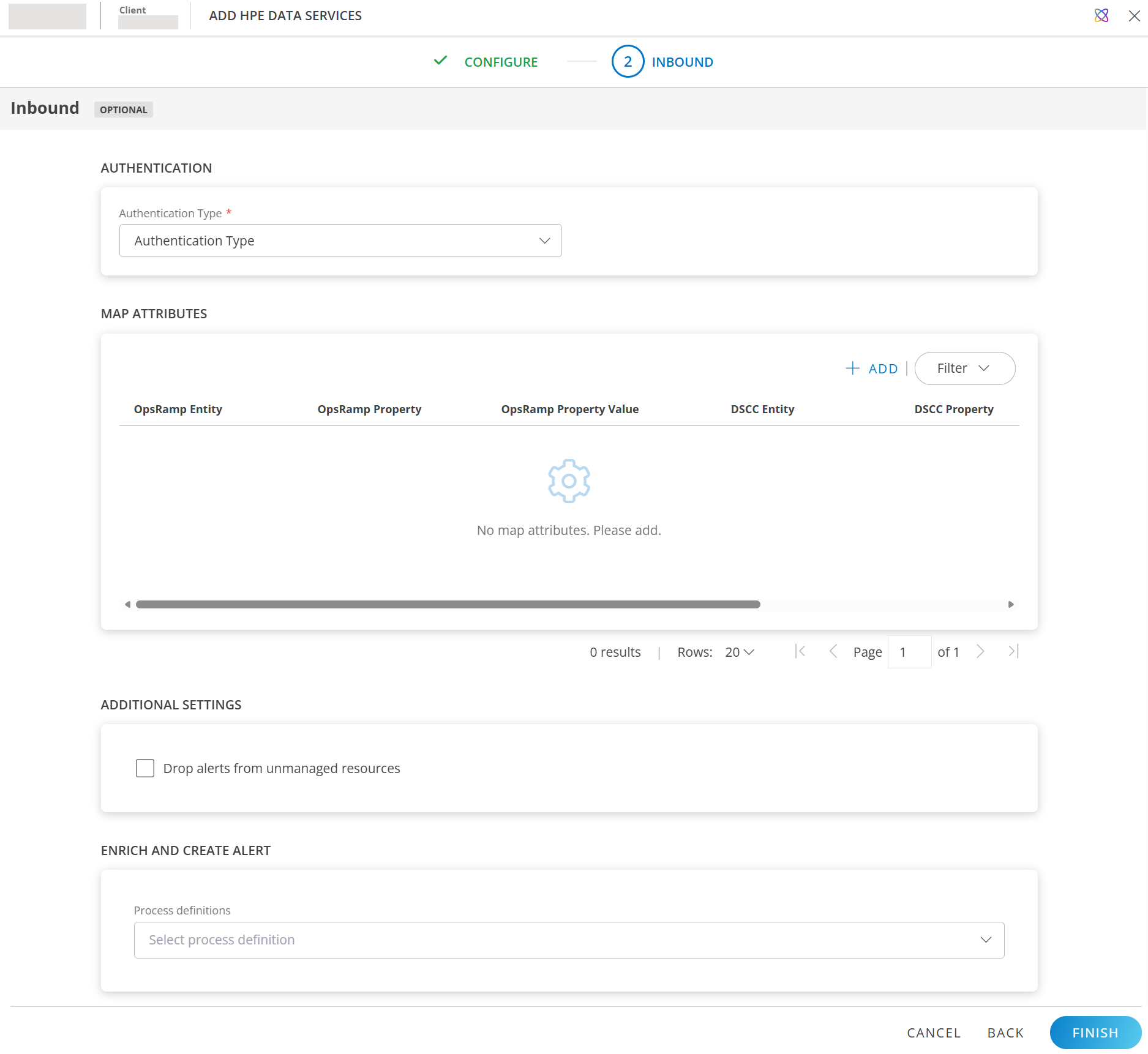
Configure INBOUND communication
AUTHENTICATION:
Field Name Field Type Description Authentication Type Dropdown OpsRamp supports APIs with WEBHOOK for the integration.
Select WEBHOOK.GENERATE KEY: Click to generate the Tenant ID, Token, Webhook URL, and Curl command. Use the copy icon to make a note of these.
The Curl command is used to connect to DSCC and provide authentication and other event information.Enable Webhook Handshake: The verification challenge request includes a unique, random string generated by the server sent in the body as a payload.
REQUEST HANDSHAKE PROPERTIES: These properties define what the system expects to receive in the initial webhook request.
Property Value type com.hpe.greenlake.events.v1beta1.webhooks.verificationchallengeRequest $data.challengeRequest- The property values for
typeandchallengeRequestare modifiable. - Click +ADD REQUEST HANDSHAKE PROPERTIES to include additional request properties, if required.
- The property values for
RESPONSE HANDSHAKE PROPERTIES: These properties define what the system returns in response to a valid handshake request.
Property Value verification $CREATED_HASH- The property value for
verificationis modifiable. - Click +ADD RESPONSE HANDSHAKE PROPERTIES to include additional response properties, if required.
- The property value for
MAP ATTRIBUTES: Map DSCC entity attributes with OpsRamp entity.
Click +ADD and enter the following information in the ADD MAP ATTRIBUTES window:Field Name Field Type Description OpsRamp Entity Dropdown Select Alert from the dropdown. OpsRamp Property Dropdown Select OpsRamp property from the dropdown. DSCC Entity String Enter DSCC Entity value. DSCC Property String Enter DSCC Property value. PARSING CONDITION: To give a parsing condition:
- Click +ADD and provide values in the Operator and Value fields.
- Click SAVE.
PROPERTY VALUES: Click +PROPERTY VALUE. Enter the following information and click SAVE.
(Or)Field Name Field Type Description DSCC Property Value String Enter DSCC property value in the box. OpsRamp Property Value Dropdown Select a value from the dropdown.
Based on the OpsRamp Property selected above, the options in this field appear.Default Value: Select a default value from the dropdown. If the above condition does not meet the criteria, the default value is considered.
Field mappings
Event type: Alert
Following are the sample field mappings on OpsRamp side to receive Inbound events from DSCC request payload for Alert event type:
| OpsRamp Entity | OpsRamp Property | OpsRamp Property Value | DSCC Entity | DSCC Property | DSCC Property Value |
|---|---|---|---|---|---|
| ALERT | alert.currentState | Warning | Alert | severity | WARNING |
| ALERT | alert.currentState | Critical | Alert | severity | CRITICAL |
| ALERT | alert.currentState | Ok | Alert | severity | OK |
| ALERT | alert.subject | Alert | subject | ||
| ALERT | alert.serviceName | Alert | type | ||
| ALERT | alert.deviceName | Alert | id | ||
| ALERT | alert.description | Alert | data.eventData.key |
Note:
- The property names and values for OpsRamp are fixed and mandatory for integration to work.
- The property names and values for DSCC can be modified as per incoming request payload.
The screen looks something like this:
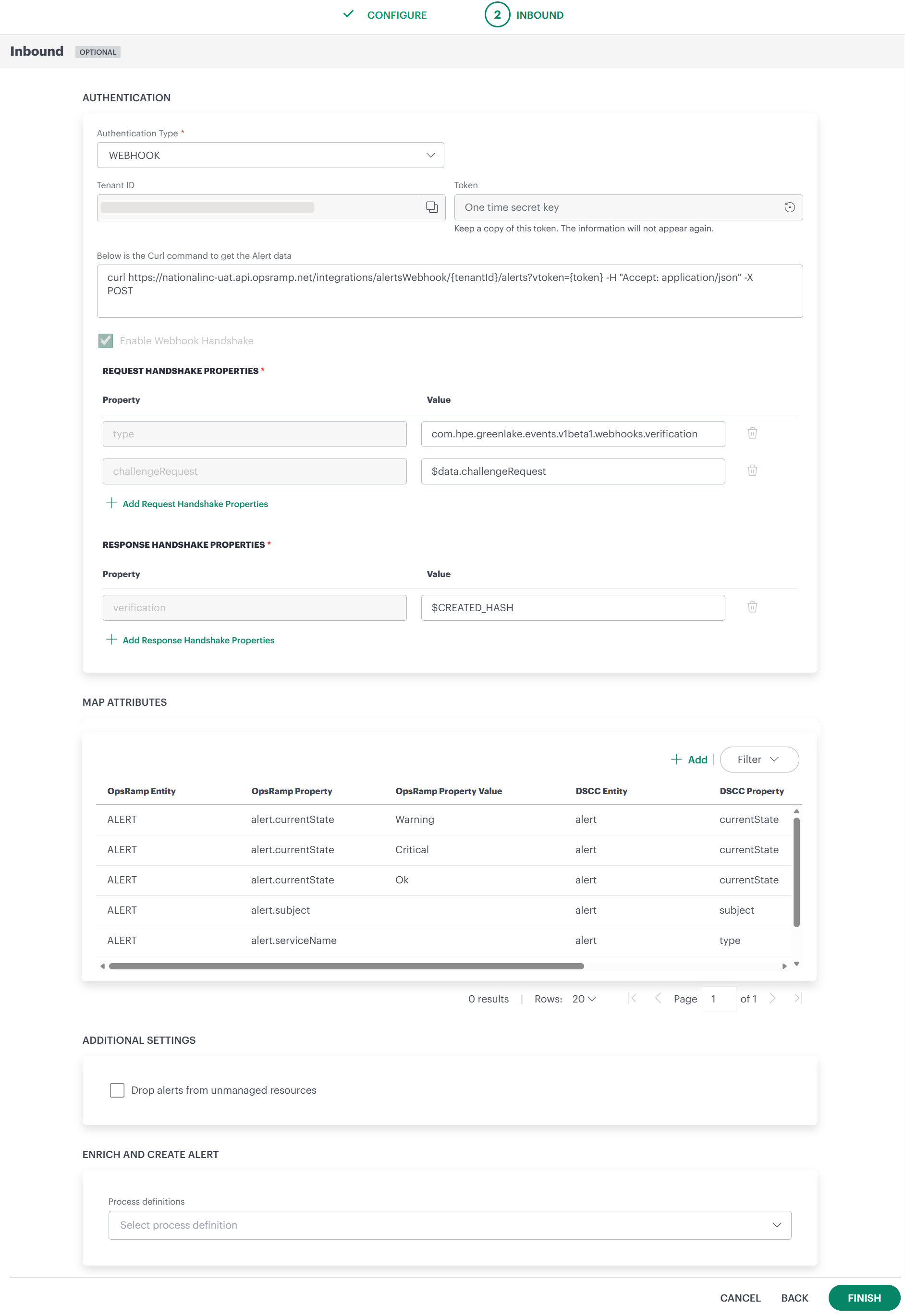
Click ADD MAP ATTRIBUTES. The mapped information is displayed in the MAP ATTRIBUTES section.
- Use the three dots menu to edit or remove the map attributes.
- Use Filter to filter the map attributes.
ADDITIONAL SETTINGS:
- Drop alerts from unmanaged resources: You can configure event ingestion integrations to post events only if the resources are managed by OpsRamp. For resources that are not managed, the events are dropped and not processed. Select the checkbox as per your requirements.
ENRICH AND CREATE ALERT: Select process definition from the dropdown.
Note: For the integration to enrich and create an alert, the process definition selected should have the Create Alert task configured.Click FINISH. The Data Services integration is installed and displayed under Installed Integrations.
Register webhook on DSCC
You can register a webhook on DSCC using HPE developer portal with OpsRamp webhook URL as the destination URL.
To register a webhook:
- From Manage Workspace page, click the Automations tile. The Automations page is displayed.
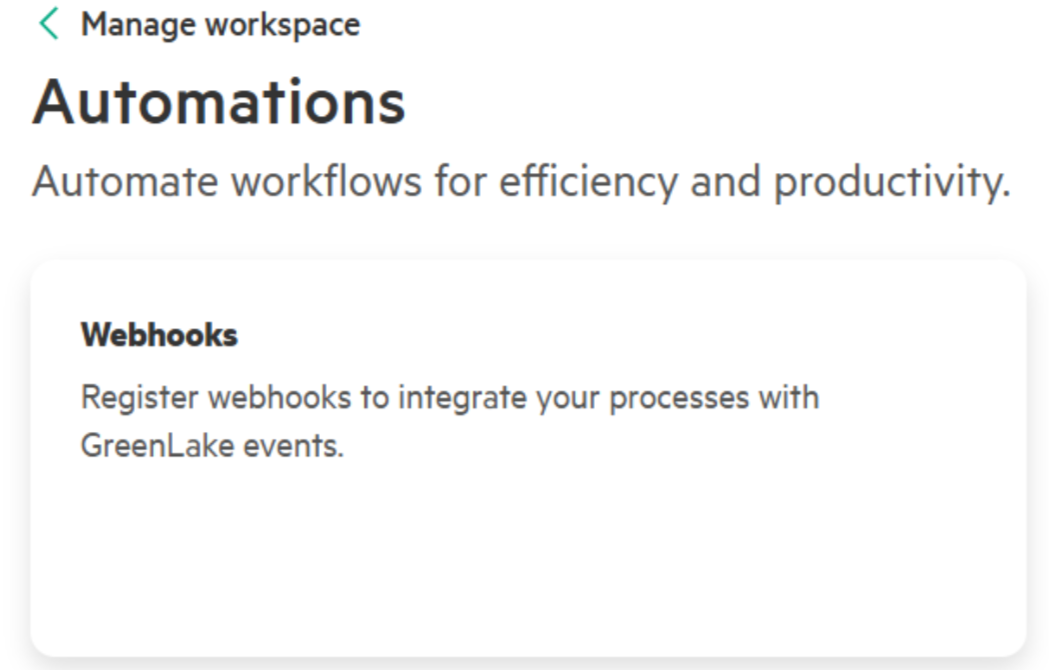
- Click Webhooks tile.

- Click Register Webhook. The Register Webhook slide-out is displayed.
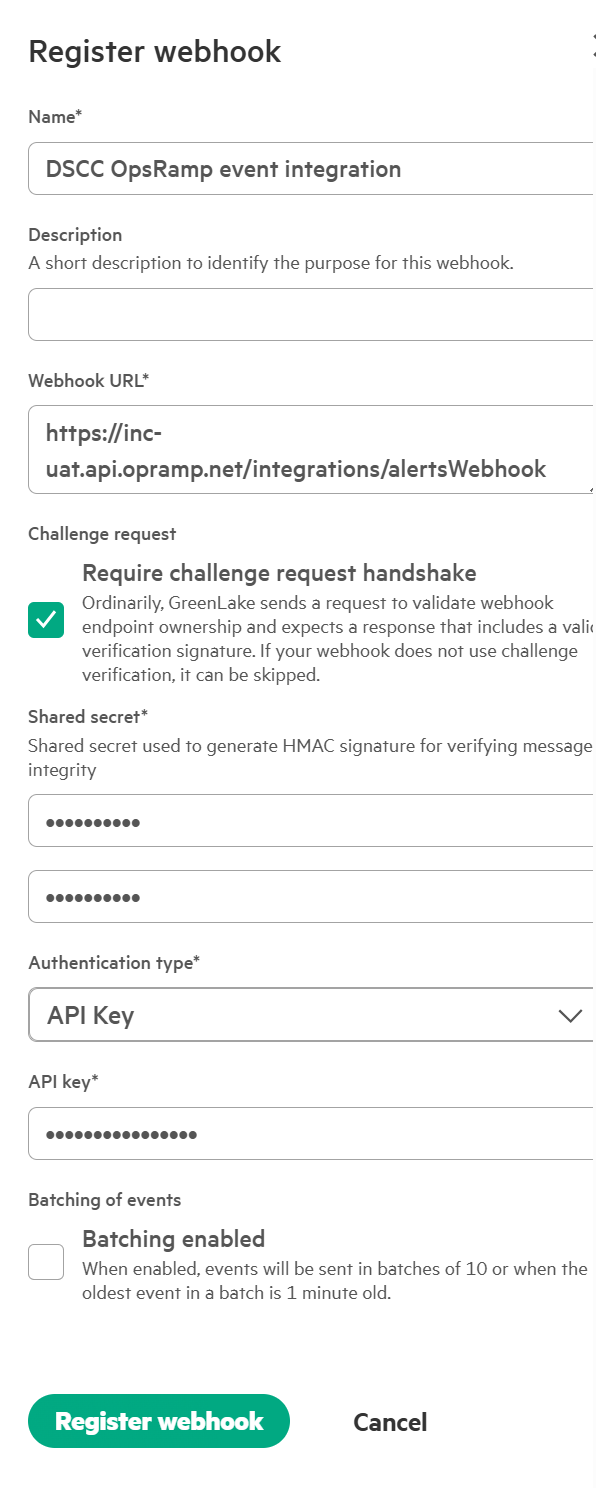
- Enter the details and click Register Webhook.
The webhook is registered successfully. The webhook should be in active state.
You can subscribe to different events.
See Register a webhook for more information.
Actions on Integration
You can perform actions like View Logs, Export, Edit, Assign Templates, and Uninstall on the integration.
- See Actions on Integration for more information.
View Logs
View Inbound logs from the View Logs option for the integration. You can view if the event was successful or not.
See View Logs for more information.
View Alerts
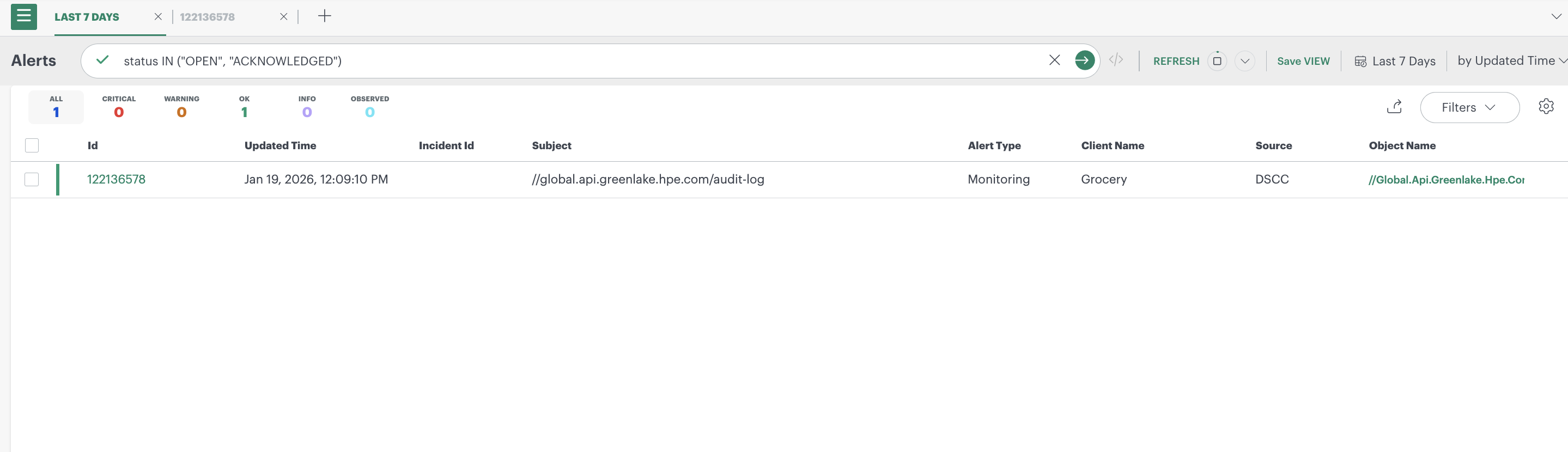
Once the alerts are received from DSCC into OpsRamp, you can check the same by navigating through this path:
- Command Center > Alerts
Validate
Validate the configurations using any API development tool, for example, POSTMAN.
Sample DSCC verification payload
{
    "specversion": "1.0",
    "id": "6c05bd5a-773e-4651-9a50-5dd1a65a63d8",
    "source": "/global-endpoint.com/sample-publisher",
    "type": "com.hpe.greenlake.events.v1beta1.webhooks.verification",
    "datacontenttype": "application/json",
    "time": "2024-05-15T06:06:57Z",
    "subject": "fb42ae8c1b0311eeb5f5ce679bd97305",
    "data": {
        "challengeRequest": "5d7457bc-e29e-4f79-aaa3-1a2345e68994"
    }
}
Example DSCC event request payload
{
    "data": {
        "additional_info": {
            "account_name": "HPE GreenLake edge-to-cloud platform demo",
            "request_id": "xxxxxxxx-xxxx-xxxx-xxxx-xxxxxxxxxxxx"
        },
        "application": {
            "id": "00000000-0000-0000-0000-000000000000"
        },
        "category": "unified_eventing",
        "created_at": 1767975683286,
        "description": "Creation of Subscription: xxxxxxxx-xxxx-xxxx-xxxx-xxxxxxxxxxxx, by User: user@example.com is successful.",
        "has_details": true,
        "id": "XXXXXXXXXXXXXXXXXXXX",
        "updated_at": 1767975683286,
        "user": {
            "username": "user@example.com"
        },
        "workspace": {
            "id": "xxxxxxxxxxxxxxxxxxxxxxxxxxxxxxxx",
            "workspace_name": null,
            "workspace_type": null
        }
    },
    "datacontenttype": "application/json",
    "dataschema": "https://developer.greenlake.hpe.com/docs/greenlake/services/audit-logs/public/catalog/audit-log-event-latest/paths/Audit%20Log%20Created/post/%22,
    "id": "XXXXXXXXXXXXXXXXXXXX",
    "source": "//global.api.greenlake.hpe.com/audit-log",
    "specversion": "1.0",
    "time": "2026-01-09T16:21:23.286Z",
    "type": "com.hpe.greenlake.audit-log.v1.logs.created"
}
POST alert verification challenge through Postman
- Enter the OpsRamp destination webhook URL.
- Change the method to POST.
- Add the mentioned handshake properties:
typeandchallengeRequest.
You will get the created HASH value in the response.
POST alert through Postman
- Enter the OpsRamp destination webhook URL.
- Change the method to POST.
- Enter the JSON request payload in the body section (event payload)
- Navigate to OpsRamp Command Center and view the alert.