Introduction
Gateway firmware updates are regularly published. These updates are for security patches, bug fixes, and new features. This document describes how to update Gateway firmware.
Firmware updates are categorized into two types:
- Minor Updates: Released approximately every two months as part of regular product updates. We publish only Gateway patch which is compatible with N-1, N-2 versions only.
- Major Updates: Released approximately every six months as part of the product update cycle. These include:
- Gateway Images: Multiple Gateway flavors are provided, such as ISO, OVA, GCP, AWS, and Azure.
- Gateway Patches: Existing Gateways can be upgraded to the latest version from N-1 or N-2 versions. If the Gateway version does not meet the N-1 or N-2 criteria, then major update procedure must be followed.
Note
When the underlying firmware operating system reaches its end-of-life (EOL), OpsRamp releases a new Gateway with updated firmware (approximately every five years). For instance, the current Gateway runs on Ubuntu 22.04, which will reach EOL in April 2027. At that time, OpsRamp will release a new Gateway with updated firmware, such as Ubuntu 25.04 or 26.04.Gateways operating on unsupported firmware cannot be upgraded to the latest version from the OpsRamp cloud. Over time, outdated Gateway packages become increasingly vulnerable, making it crucial to ensure Gateways are regularly updated.
Use the UI for major and minor updates.
Minor Update
Minor firmware updates can be done on your existing Gateways. The following section provides detailed steps for performing a minor firmware update of the Classic Gateway.
Prerequisite
The Gateway must be running and communicating with the cloud.
Permissions
The following permissions are required to update the Classic Gateway from OpsRamp Portal:
| Category | Permission Type | Permission Value |
|---|---|---|
| Collectors | Gateway Firmware | Allow Update |
| Collectors | Manage Management Profile | Manage |
Follow these steps to enable the above permission set:
- Navigate to Setup > Account > Users and Permissions.
- Click the Permissions Sets tab.
- Click + ADD. The Add Permission page is displayed.
- Under Permission Set Details screen, enter a Permission Set Name and short Description.
- Select the above mentioned permissions and click Save.
Refer to the Permission Sets document for more details on obtaining the necessary permissions.
Update Procedure
Follow the Steps below to update the Classic Gateway from the OpsRamp Portal:
Login to OpsRamp Portal.
Navigate to Setup > Accounts.
Click on Collector Profiles.
Select the management profile you want to update from the list, then click the Action button.

Choose one of the following actions to update the Gateway:
- Update Now: Select the desired Gateway profile and click Update Now.
This triggers an immediate update, and the profile will be updated within minutes. - Update on Schedule: Select the required Gateway profile and click Update on Schedule.
The Gateway will check for updates every 6 hours and automatically apply any new versions available. - Do not Allow Update: Click this option to disable updates for the Gateway.
- Reconnect Tunnel: Select this option if you need to re-establish a connection tunnel for the Gateway. This can help resolve connectivity issues or refresh the connection.
- Update Now: Select the desired Gateway profile and click Update Now.
An update request will be sent to the gateway and the Gateway will be updated to the latest version.
Major Update
If the current operating gateway is satifying the Gateway Support Policy then you can follow the minor update section to upgrade the Gateway. If it breaks Gateway Support Policy or EOL of the Gateway firmware Operating system then you must replace the existing gateway with new Gateway. This requires creating a new Gateway and switching over to it.
Note
If an existing gateway generated a CRITICAL/WARNING alert for a monitor on a resource, and that metric recovered during the migration process, the recovery alert may not be triggered. Since the new Gateway starts monitoring it in an OK state, the resource remains in the CRITICAL/WARNING state. The new Gateway sends a new alert, which gets appended to the existing alert.Before you start
Verify that your existing Gateway model belongs to one of the following models:
- VGVMA
- VGAMI
- VGAZU
- VGGCE
- VGPHY
- OGVMAU18
- OGAMIU18
- OGAZUU18
- OGGCEU18
- OGPHYU18
Verify that your Gateway tunnel is in TLS mode before you start the migration process. The SSHD tunnel-based Gateway does not support Gateway migration.
Save the resource configuration information for the existing Gateway virtual appliance:
- Number of CPU cores
- Memory allocated
- Disk size and data store name in use
- Number of virtual networks on Virtual Appliance
- Details of vSwitches that are connected to the virtual appliance
Update Procedure
Step 1: Get the current Gateway configuration data
In a web browser, enter the Gateway URL. For example:
https://<Gateway IP address>:5480.Log in using your username and password. Contact Support for default login credentials.
In the Administration Menu, note the following configuration setup data, which you need to configure the new Gateway:
- IP Address
- Network Configuration
- Date & Time
- Registration details
Log out from the gateway.
Step 2: Download the current Gateway image
To download the Classic Gateway image, follow the steps below:
- In the OpsRamp portal, select your client from All Clients.
- Navigate to Setup > Account > Collector Profile.
- On the Collector Profiles page, click + ADD.

- On the Add Gateway Collector Profile page, enter the following details:
- Profile Name: Provide a name for the profile you are creating.
- Profile Type: Select Standard.
- Description (Optional): Add a short description for the profile.
- Gateway Collector: Select one of the image options for Classic Gateway.
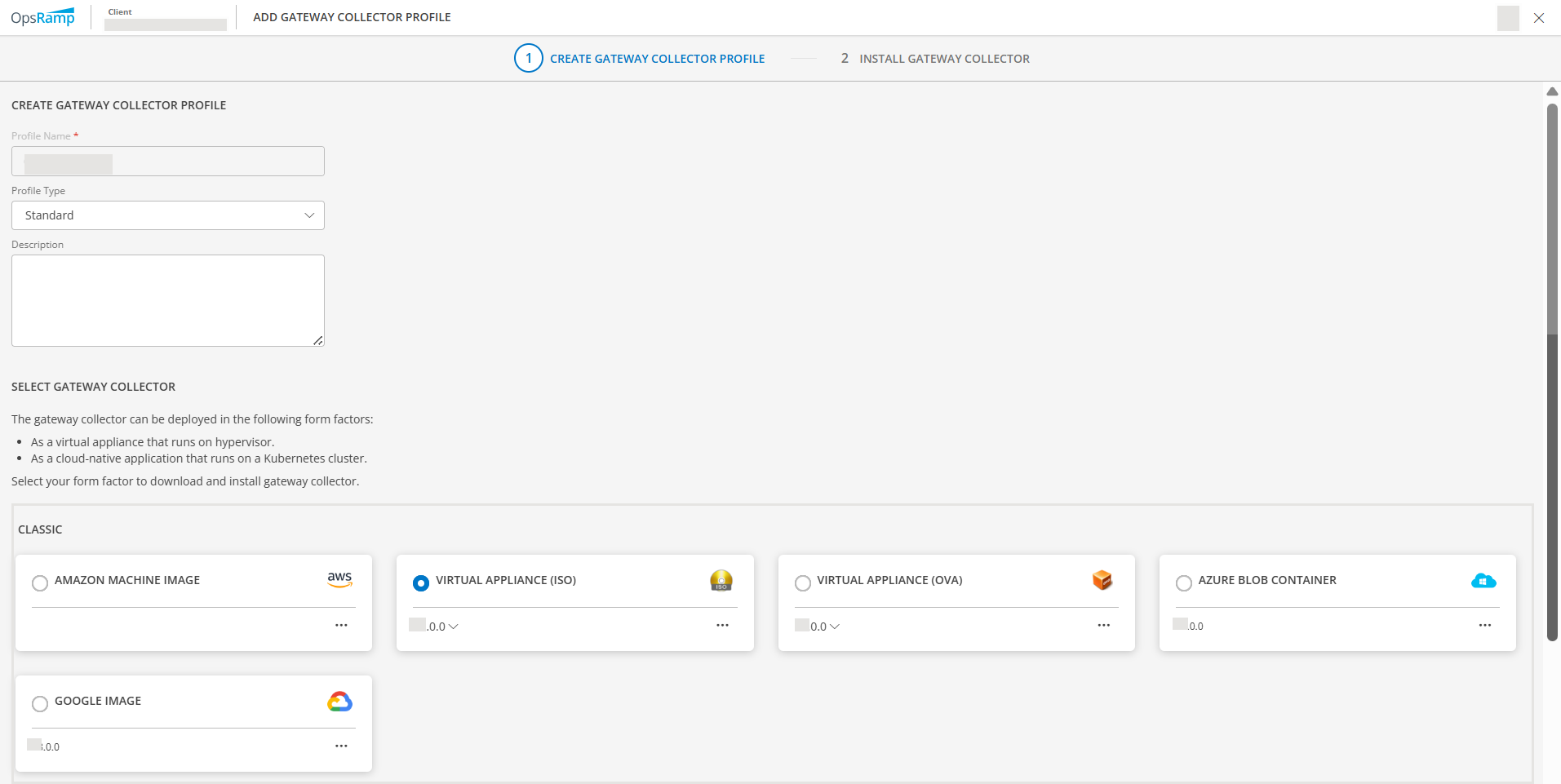
- Click NEXT.
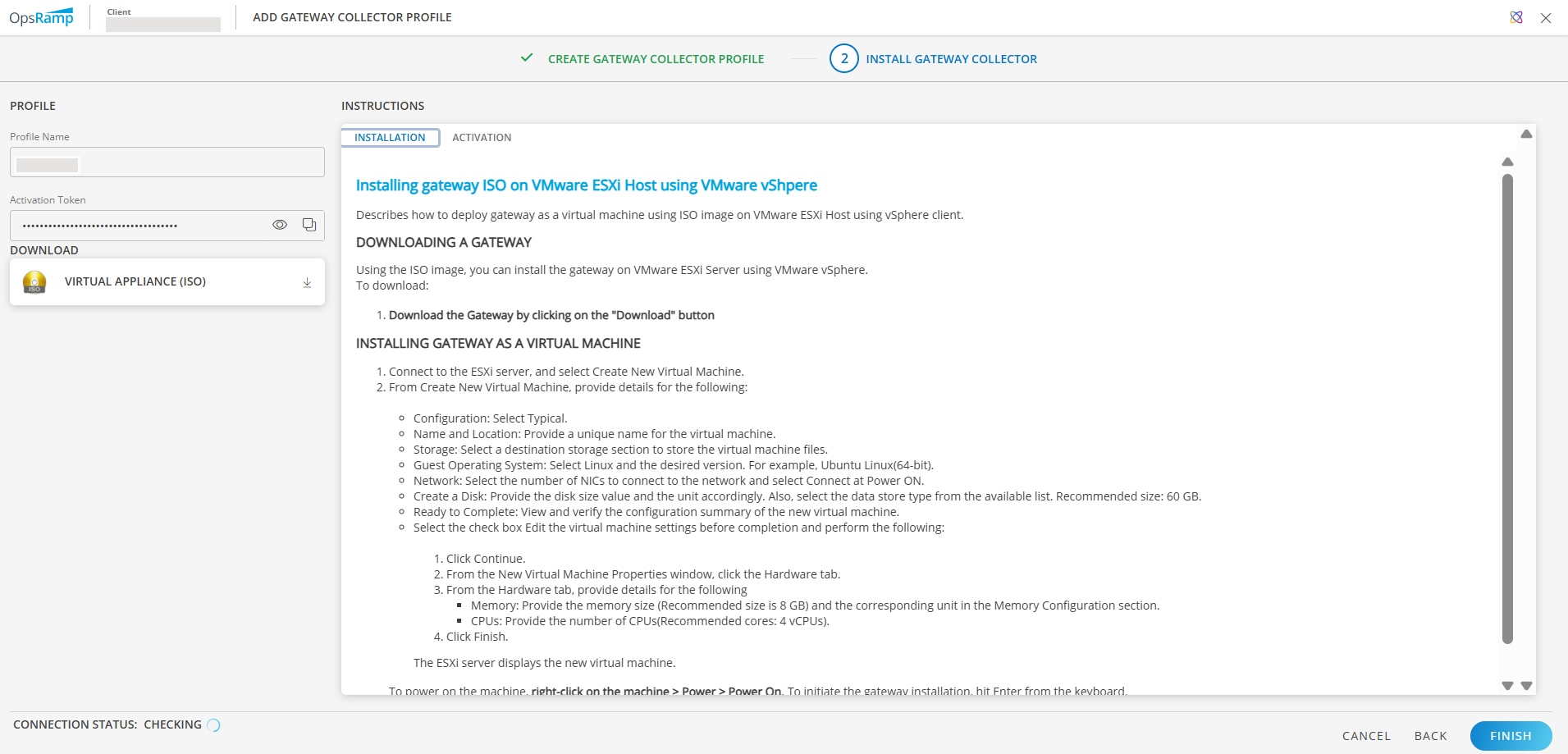
- Click VIRTUAL APPLIANCE (ISO) in the left pane to download.
The classic gateway image is downloaded to your local system.
Step 3: Detach the existing Gateway
- Navigate to Setup > Account > Collector Profiles in the OpsRamp console.
- Select the collector profile associated with the Gateway you want to replace and click Detach Gateway.
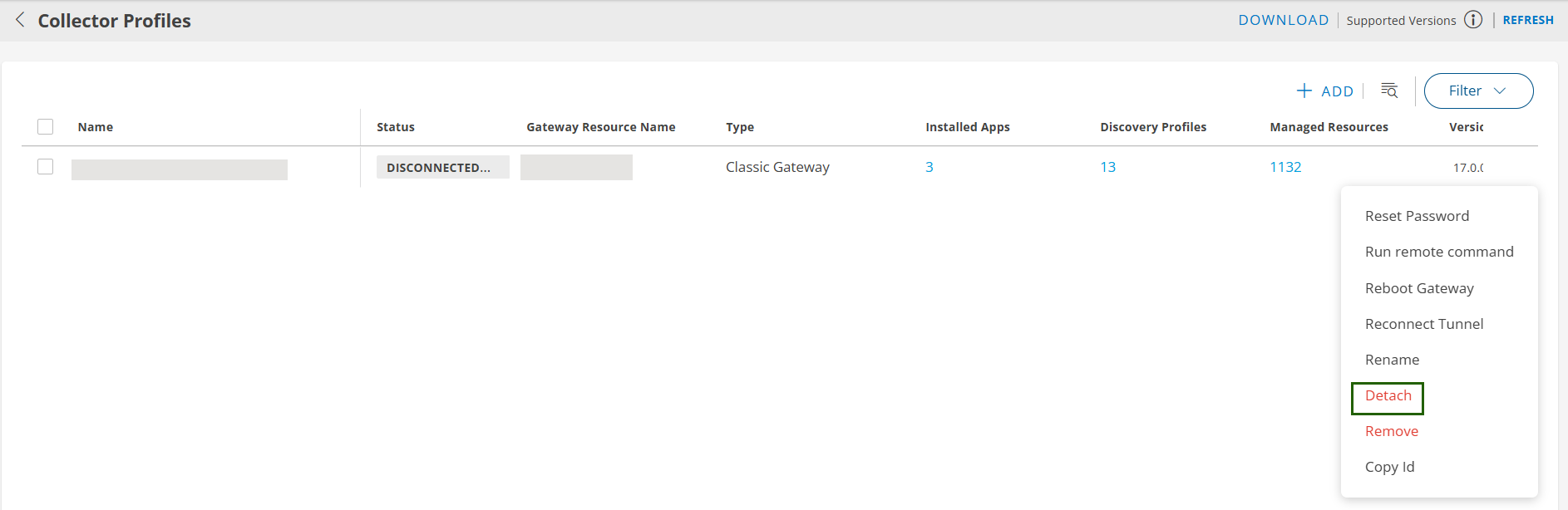
Step 4: Spin up a new virtual machine
Create a virtual appliance using the saved resource configuration information of the existing Gateway. Configure the new virtual appliance using the configuration setup data.
- Log into the Gateway web user interface.
- In the Administration Menu, enter the configuration setup data:
- Network
- Date
- Time.
- Click Save.
Step 5: Attach the new Gateway
- In OpsRamp, navigate to Setup > Account > Collector Profiles.
- Select the Collector profile from which you detached the old Gateway.
- Click Reinstall. Step 6 below contains the gateway registration steps, but for more detailed instructions, refer to the Registering the OpsRamp Classic Gateway section.
Step 6: Configure the new Gateway
- Select Administration Menu > Registration.
- In the Registration window, note the OpsRamp Server URL.
- Enter the information for the following options:
- Activation Key: The OpsRamp -generated activation key.
- OpsRamp Server: The OpsRamp server IP/URL.
- Click Activate
- After activation completes, click Register Appliance Now. The Gateway registration status changes from Not Registered to Registered:
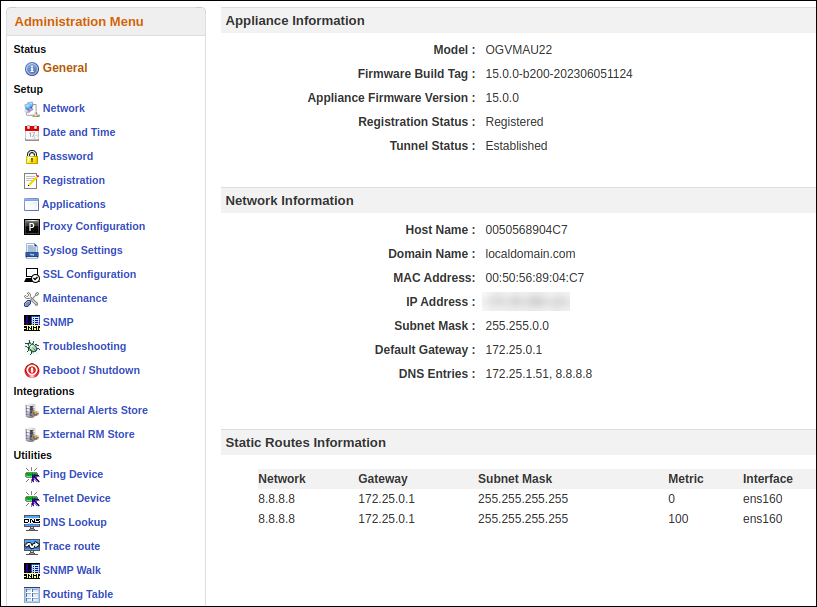
If your previous Gateway was used as a proxy for agent communication, you need to create the new Gateway using the same IP address and manually start the proxy service from the Gateway web user interface.
Step 7: Verify the upgrade
Verify the following options:
- Gateway status shows Connected under the Collector Profile Status.
- Under Registration Details, verify the Gateway model ID begins with OG (e.g., OGVMAU22).
- Confirm the firmware version reflects the latest update.
- Wait
5–10minutes, then check monitoring graphs for the Gateway and managed devices. - If a Gateway is used as a Proxy server for Agents, verify that the Agents are in the Active state and verify recent graphs.
- If a Gateway is used for monitoring Web Services or SIP, verify recent graphs.