An inference is a logical grouping of related alerts that have been correlated based on patterns defined in your alert correlation policies. When incoming alerts match the correlation rules in a policy, OpsRamp automatically groups them into an inference and assigns the inference a unique ID.
Instead of analyzing multiple individual alerts, you can investigate the inference to understand the broader issue affecting the environment. This helps reduce alert noise and allows teams to focus on identifying and resolving the underlying problem rather than reacting to each alert separately.
With inferences, you can:
View all correlated alerts associated with the inference
Identify and designate a Root Cause Alert (RCA) for investigation
Remove alerts that should not be part of the correlation
Monitor correlation outcomes using inference statistics
Reduce alert volume and improve incident response efficiency
View inferences
Alerts are correlated based on patterns specified in alert policies to create an inference with a unique ID. You can view inference details from the Alerts page.
Go to Command Center > Alerts.
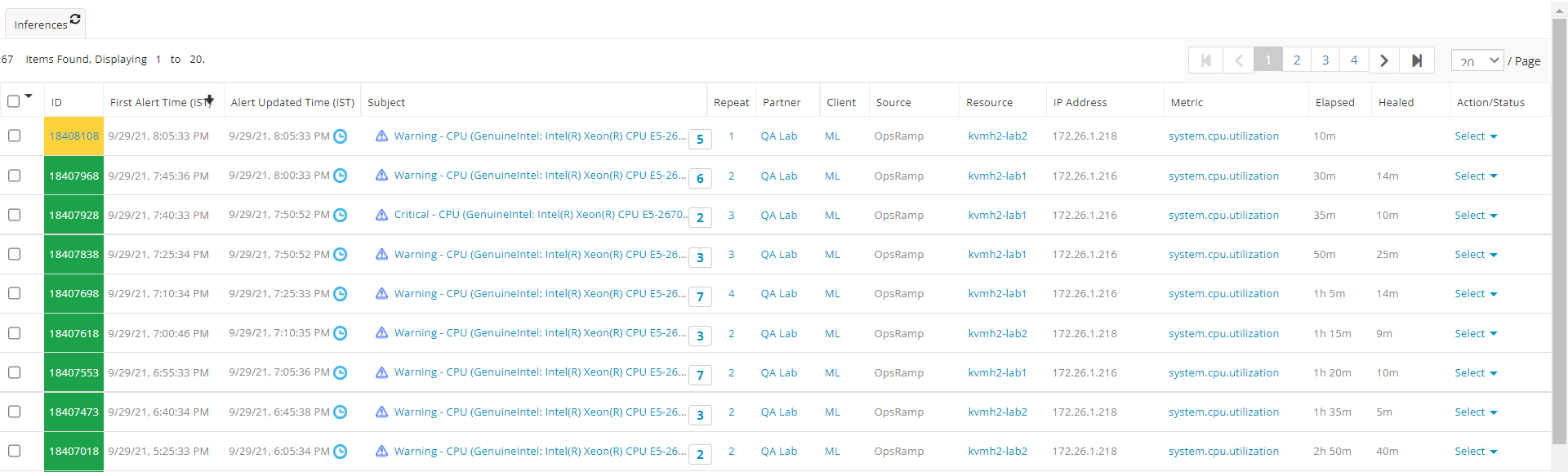
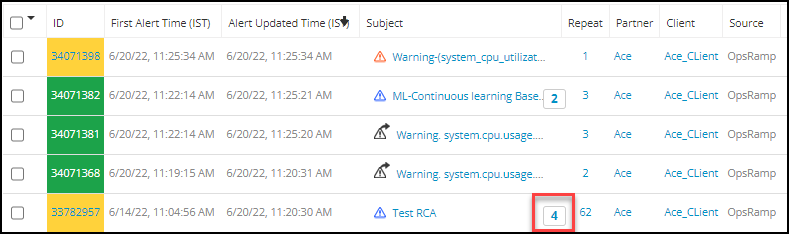
Inferences are indicated by a blue icon next to the alert subject:
The subject also displays a count of correlated alerts for the inference:
Click the inference ID to view its details.
The details page contains the following tabs:
Details
Alerts History
Correlated Alerts
Incidents
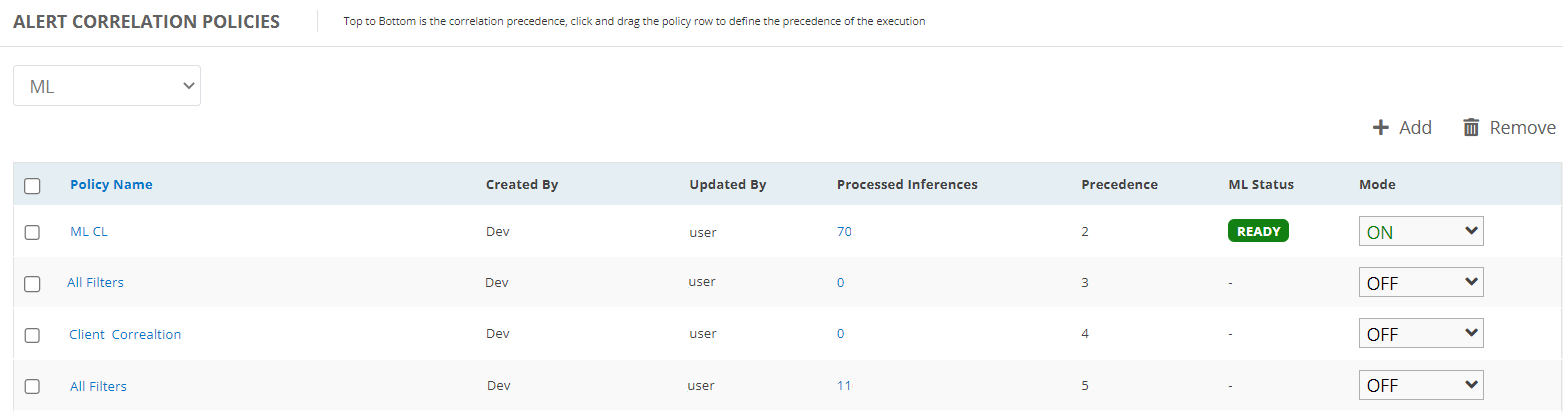
View processed inferences
To view the number of inferences associated with a policy:
Go to Setup > Alerts > Alert Correlation and select the required policy.
Select a client from the Select Client list.
Click the number in the Processed Inferences column to view inference details.
The list of processed inferences is displayed on the Alerts page.
Remove alerts from an inference
You can remove alerts from an inference. For example, if you don’t want an alert to be correlated, you can remove it from the inference. The removed alert then appears on the alerts browser as an individual alert.
If an inference contains only two correlated alerts, removing one alert will make both alerts individual alerts.
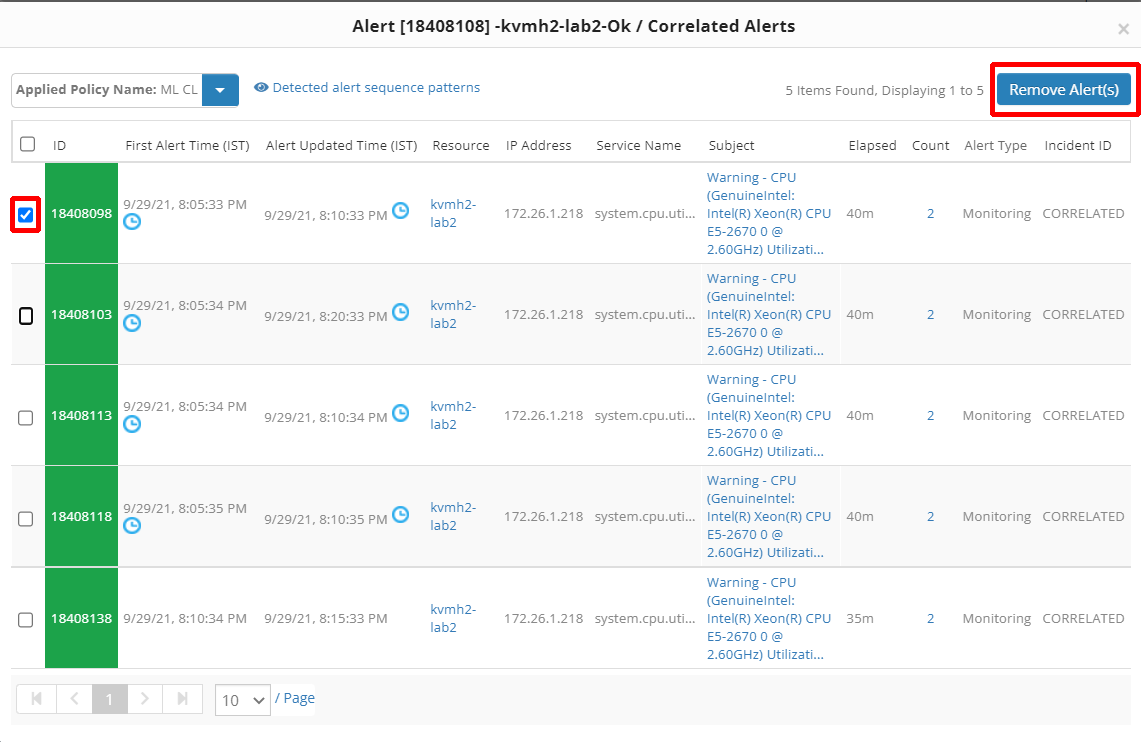
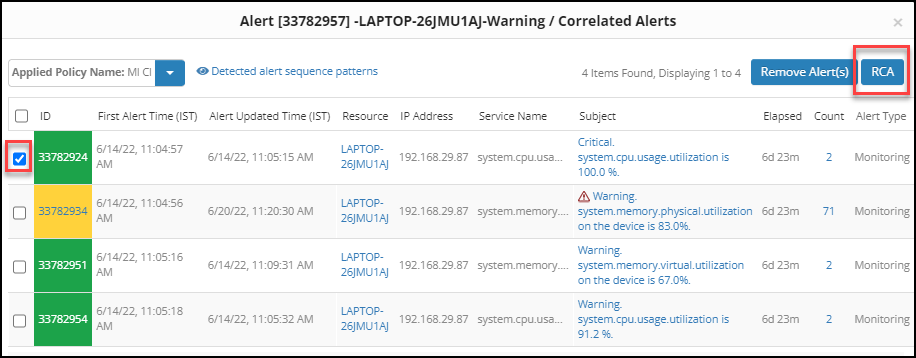
You can remove alerts from an inference using the Correlated Alerts list in the Alerts window or from the Correlated Alerts tab on the alert Details page.
Go to Command Center > Alerts.
On the Alerts page, click the number next to the inference subject.
Select the required alert and click Remove.
Click Yes on the confirmation message.
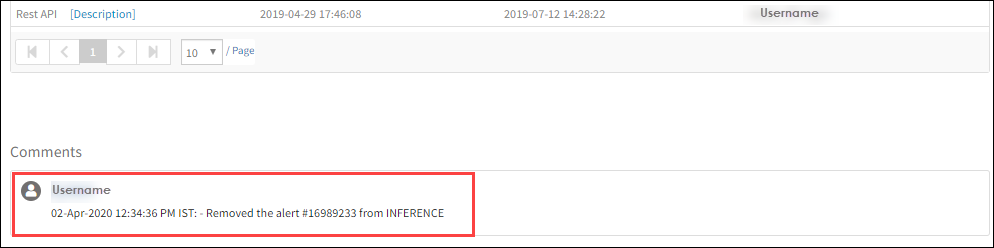
The alert is removed from the inference, and a comment is added to the Details tab of the inference.
Designate an alert as RCA within an inference
When you have multiple alerts within an inference and need to identify one critical alert as the primary alert for root cause analysis, you can designate it as the RCA (Root Cause Alert). This helps you identify critical or warning alerts from a large list and take appropriate action.
You can select only one alert from the list to tag as an RCA. When you do this, the inference subject line is updated accordingly. You can also modify the subject line of the alert designated as the RCA. This feature is supported only for correlated alert types.
To designate a correlated alert as RCA from an inference:
Go to Command Center > Alerts.
On the Alerts page, click the number next to the inference subject.
Select the alert you want to designate as RCA and click RCA.
Click the Submit button. You can update the subject line here if needed.
The alert is submitted as RCA from the inference. RCA alerts appear in the list with a warning icon for easy identification.
Create an inference stats widget to view inference statistics
The Inference Stats widget displays statistics for inferences generated within a partner or client.
The widget shows the following information:
Statistic
Description
Total Events
Total number of events generated in your system during the selected time range.
Total Alerts
Total number of alerts created after the event ingestion process.
Total Inferences
Total number of inferences generated by the alert correlation policies.
Total Correlated Alerts
Total number of alerts that have been correlated and grouped into inferences.
Volume Optimized
Total percentage reduction in alert volume achieved through alert correlation, helping you measure the effectiveness of your correlation policies.
Go to Dashboards > Classic Dashboard.
Ensure you have the correct client selected.
Click Add Widget.
Click Continue to edit the dashboard.
From the OTHER PREDEFINED WIDGET section, click Inference Stats.
Configure the following parameters:
Parameter
Description
Time Range
Select the time period for which you want to view inference statistics. This filter determines the time span for calculating the metrics displayed in the widget.
Refresh every
Select how frequently the widget should automatically update its statistics. Choose an interval that balances real-time visibility with system performance.
Inference Stats
This setting determines which policies are included in the statistics. By default, the widget displays statistics from enabled policies only, ensuring that data reflects only active correlation rules.
Widget Title
Enter a descriptive name for the widget. This title will be displayed on the dashboard to help you identify the widget's purpose.
Chart Style
Select the visual format for displaying the inference statistics. Note that only one chart style is currently available for the inference stats widget.
Click Save.
The Inference Stats widget is created and displayed on the dashboard.The widget displays the total number of inferences and correlated alerts created from enabled correlation policies. Volume optimization is calculated based on inferences and correlated alerts from enabled correlation policies.