How to create SNMP Monitor (Adapter Type: SNMP)
Prerequisites
Before creating SNMP monitors, ensure the following prerequisites are met.
- Required MIB files supported by the device.
- SNMP full walk data of the device.
- SNMP should be enabled on the device (Default port:
161, bidirectional).
Configuration steps
To create an SNMP monitor:
- Log in to the POD (OpsRamp platform).
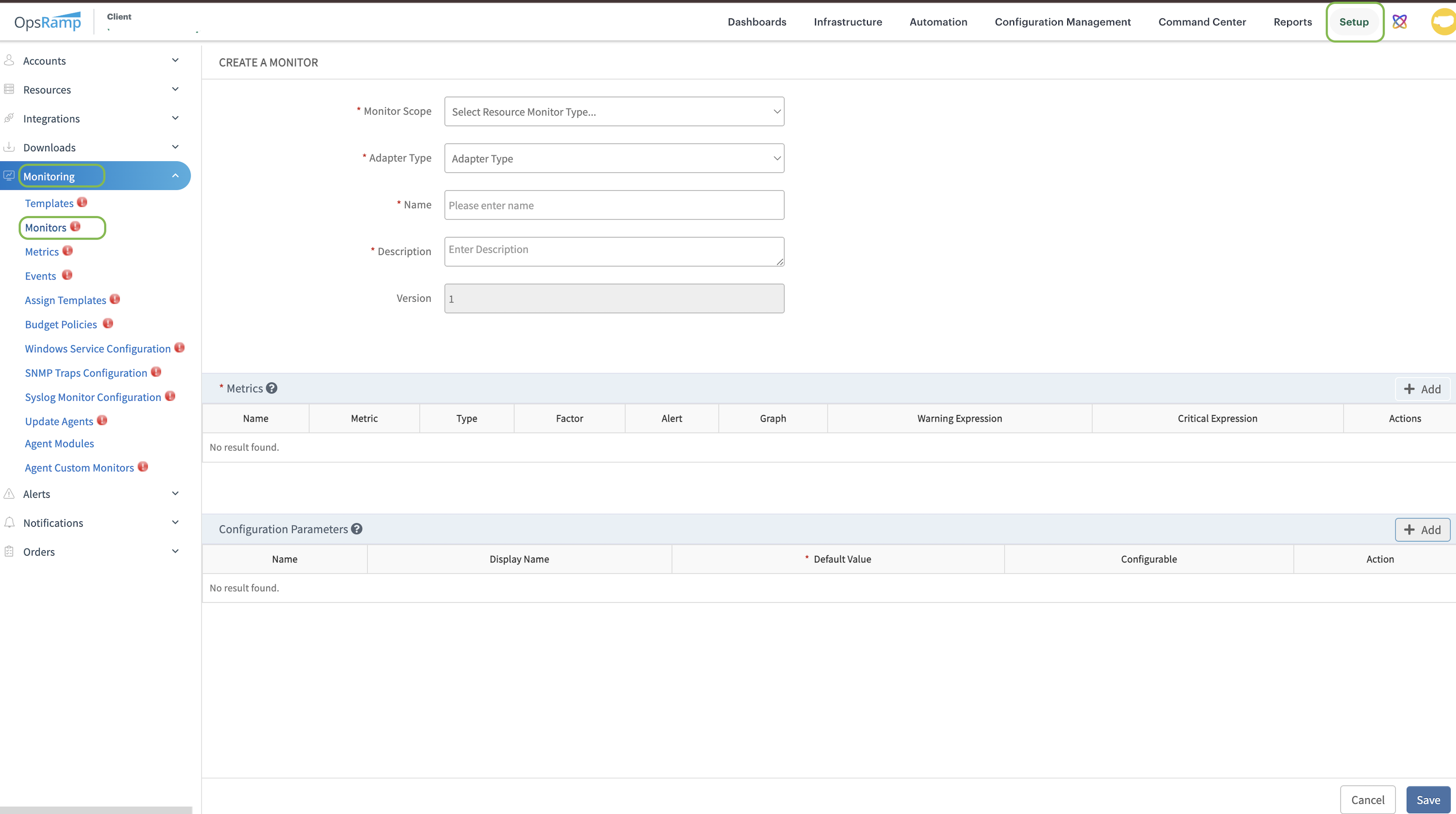
- Navigate to the Setup tab (top right corner).
- In the left panel, select Monitoring.
- Under Monitoring, click on Monitors.
- Click on +Add to create a Monitor.
The system redirects to the Monitor Creation page, where the SNMP monitor details can be configured.

CREATE A MONITOR
Creating SNMP monitors allows administrators to initiate monitoring, track device metrics, and configure thresholds to receive alerts.
Enter the following parameters on the CREATE A MONITOR page:
| Field Name | Description | Field Type |
|---|---|---|
| Monitor Scope | Choose the monitoring scope: Service Provider Monitor, Partner Monitor, or Client Monitor. For Partner or Client Monitor options, specify the corresponding Partner and Client details. | Dropdown |
| Adapter Type | Select SNMP as the adapter type for this monitor. | Dropdown |
| Name | Provide a unique Name for the monitor.Recommended Monitor Name Format<Vendor> <Device Type/Model/OS> - <Use Case>Examples:
- HPE Instant On Switch - Hardware
- Cisco Nexus Switch - PerformanceRecommended Partner/Client-Specific Monitor Name Format<Partner/Client Name> - <Vendor> <Device Type/Model/OS> - <Use Case>Example:
- ABCD - Cisco Nexus Switch - PerformanceNote: Use the Partner/Client-specific format only for Partner or Client Monitors. | String |
| Description | Enter a comprehensive description that explains the purpose and scope of the monitor. | String |
| Is this monitor for a component that has multiple instances? | Select Yes for Tabular OID (multiple component instances) or No for Scalar OID (single value). | Dropdown |
| Version | Set to 1 by default. | Integer |
Component properties
The Component Properties section is displayed only when configuring Tabular OIDs, i.e., when “Yes” is selected for “Is this monitor for a component that has multiple instances?”
This section allows defining properties for multiple instances of the selected OID.
Mode
Method used to determine the component name or value. Available options are as follows:
- Get Value
- Get Index
- Lookup Index
- Lookup Value

Get Value
Click here to expand and view detailed information on Get Value.
Returns the OID value as the component. If the value is empty or duplicated, the system falls back to using the OID index, where the first occurrence appears as empty or original value and subsequent entries are represented as #index (index prefixed with #).
Example: OID: 1.3.6.1.2.1.31.1.1.1.1
Use Case 1 – When OID values are present
When the OID returns valid values, those values are directly used as the component names. For example, if the ifName OID (1.3.6.1.2.1.31.1.1.1.1) returns interface names from the device, those values will be considered as components.
Sample SNMP Walk Output:
1.3.6.1.2.1.31.1.1.1.1.1 = STRING: "Vl1"
1.3.6.1.2.1.31.1.1.1.1.10 = STRING: "Vl10"
1.3.6.1.2.1.31.1.1.1.1.5001 = STRING: "Po1"
1.3.6.1.2.1.31.1.1.1.1.10101 = STRING: "Gi0/1"
Component Output:
Vl1
Vl10
Po1
Gi0/1
Use Case 2 – When OID values are empty
When the OID exists but does not return any meaningful value (empty or blank), the system cannot use the value as a component name. In such cases, it falls back to using the index.
Sample SNMP Walk Output:
1.3.6.1.2.1.31.1.1.1.1.1 = STRING: " "
1.3.6.1.2.1.31.1.1.1.1.10 = STRING: " "
1.3.6.1.2.1.31.1.1.1.1.5001 = STRING: " "
1.3.6.1.2.1.31.1.1.1.1.10101 = STRING: " "
In this scenario, the ifName OID is not returning valid interface names. Since the values are empty, the system uses the OID index as a fallback to identify components.
- The first index appears empty.
- Remaining indexes are represented as
#index.
Component Output:
(empty)
#10
#5001
#10101
Use Case 3 – When OID Values Are Duplicate
When the OID returns duplicate values for multiple indexes, the system ensures uniqueness by appending the index to the duplicate values.
For example, if the ifName OID (1.3.6.1.2.1.31.1.1.1.1) returns the same interface name for multiple indexes, those values cannot be used directly as unique component names.
Sample SNMP Walk Output:
1.3.6.1.2.1.31.1.1.1.1.1 = STRING: "Po1"
1.3.6.1.2.1.31.1.1.1.1.10 = STRING: "Vl10"
1.3.6.1.2.1.31.1.1.1.1.5001 = STRING: "Po1"
1.3.6.1.2.1.31.1.1.1.1.10101 = STRING: "Gi0/1"
1.3.6.1.2.1.31.1.1.1.1.10103 = STRING: "Po1"
In this scenario, the OID returns duplicate values (e.g., “Po1”) for multiple indexes. To uniquely identify each component, the system appends the index to the duplicate values.
- The first occurrence is used as is
- Subsequent duplicate values are represented as
value#index.
Component Output:
Po1
Vl10
Po1#5001
Gi0/1
Po1#10103
Get Index
Click here to expand and view detailed information on Get Index.
Returns the OID index as the component name instead of the actual OID value. This mode is useful when the table does not contain a meaningful OID that provides component names, and the index itself is used to uniquely identify components.
Use Case
For example, using the **ifIndex OID (1.3.6.1.2.1.2.2.1.1), the system ignores the OID values and directly uses the index portion of the OID as the component name.
OID: 1.3.6.1.2.1.2.2.1.1
Example: OID: 1.3.6.1.2.1.2.2.1.1
Sample SNMP Walk Output:
1.3.6.1.2.1.2.2.1.1.1 = INTEGER: 1
1.3.6.1.2.1.2.2.1.1.10 = INTEGER: 10
1.3.6.1.2.1.2.2.1.1.5001 = INTEGER: 5001
1.3.6.1.2.1.2.2.1.1.10101 = INTEGER: 10101
Component Output:
1
10
5001
10101
Lookup Index
Click here to expand and view detailed information on Lookup Index.
When the Lookup Index mode is used, the system performs an index-to-index mapping between the Main OID and the Lookup OID, and retrieves the corresponding value from the Lookup OID as the component.
Example:
- Main OID:
1.3.6.1.4.1.9.9.46.1.6.1.1.14(vlanTrunkPortDynamicStatus) - Lookup OID:
1.3.6.1.2.1.31.1.1.1.1(ifName)
Sample SNMP Walk Output (Main OID):
1.3.6.1.4.1.9.9.46.1.6.1.1.14.5001 = INTEGER: 1
1.3.6.1.4.1.9.9.46.1.6.1.1.14.10101 = INTEGER: 2
1.3.6.1.4.1.9.9.46.1.6.1.1.14.10102 = INTEGER: 2
1.3.6.1.4.1.9.9.46.1.6.1.1.14.10103 = INTEGER: 2
1.3.6.1.4.1.9.9.46.1.6.1.1.14.10104 = INTEGER: 2
Sample SNMP Walk Output (Lookup OID):
1.3.6.1.2.1.31.1.1.1.1.5001 = STRING: "Po1"
1.3.6.1.2.1.31.1.1.1.1.10101 = STRING: "Gi0/1"
1.3.6.1.2.1.31.1.1.1.1.10102 = STRING: "Gi0/2"
1.3.6.1.2.1.31.1.1.1.1.10103 = STRING: "Gi0/3"
1.3.6.1.2.1.31.1.1.1.1.10104 = STRING: "Gi0/4"
Both the Main OID and Lookup OID share the same index values (e.g., 5001, 10101, etc.). The system uses these indexes to map between the two OIDs.
- For index 5001, Lookup OID gives Po1
- For index 10101, Lookup OID gives Gi0/1, and so on
The Lookup OID values are used as component names.
Component Output:
5001   → Po1
10101  → Gi0/1
10102  → Gi0/2
10103  → Gi0/3
10104  → Gi0/4
Lookup Value
Click here to expand and view detailed information on Lookup Value.
When the Lookup Value mode is used, the system takes the value of the Main OID and uses it as an index to the Lookup OID, then retrieves the corresponding value as the component.
Example:
- Main OID:
1.3.6.1.4.1.9.9.109.1.1.1.1.2(cpmCPUTotalPhysicalIndex) - Lookup OID:
1.3.6.1.2.1.47.1.1.1.1.7(entPhysicalName)
Sample SNMP Walk Output (Main OID):
1.3.6.1.4.1.9.9.109.1.1.1.1.2.33 = INTEGER: 97
1.3.6.1.4.1.9.9.109.1.1.1.1.2.65 = INTEGER: 96
1.3.6.1.4.1.9.9.109.1.1.1.1.2.289 = INTEGER: 4193
1.3.6.1.4.1.9.9.109.1.1.1.1.2.321 = INTEGER: 4192
1.3.6.1.4.1.9.9.109.1.1.1.1.2.33313 = INTEGER: 8289
Sample SNMP Walk Output (Lookup OID):
1.3.6.1.2.1.47.1.1.1.1.7.97 = STRING: "0/RP0-Virtual processor for RP XR"
1.3.6.1.2.1.47.1.1.1.1.7.96 = STRING: "0/RP0-Virtual processor for admin"
1.3.6.1.2.1.47.1.1.1.1.7.4193 = STRING: "0/RP1-Virtual processor for RP XR"
1.3.6.1.2.1.47.1.1.1.1.7.4192 = STRING: "0/RP1-Virtual processor for admin"
1.3.6.1.2.1.47.1.1.1.1.7.8289 = STRING: "0/0-Virtual processor for LC XR"
1.3.6.1.2.1.47.1.1.1.1.7.8288 = STRING: "0/0-Virtual processor for admin"
In this case, the Main OID value itself is used as an index for the Lookup OID.
- For index 33, Main OID value is 97 → Lookup OID
.97→ Component is “0/RP0-Virtual processor for RP XR” - For index 65, value is 96 → Lookup OID .96 → Component is “0/RP0-Virtual processor for admin”
So, instead of using the index directly, the system uses the value returned by the Main OID to fetch the corresponding Lookup OID value.
Component Output:
97   → 0/RP0-Virtual processor for RP XR
96   → 0/RP0-Virtual processor for admin
4193 → 0/RP1-Virtual processor for RP XR
4192 → 0/RP1-Virtual processor for admin
8289 → 0/0-Virtual processor for LC XR
8288 → 0/0-Virtual processor for admin
OID
Specifies the Component OID.

Lookup OID
Enabled only when Lookup Index or Lookup Value is used. The OID and Lookup OID can belong to the same MIB (different tables) or different MIBs, but they must have a relationship for mapping.


Format
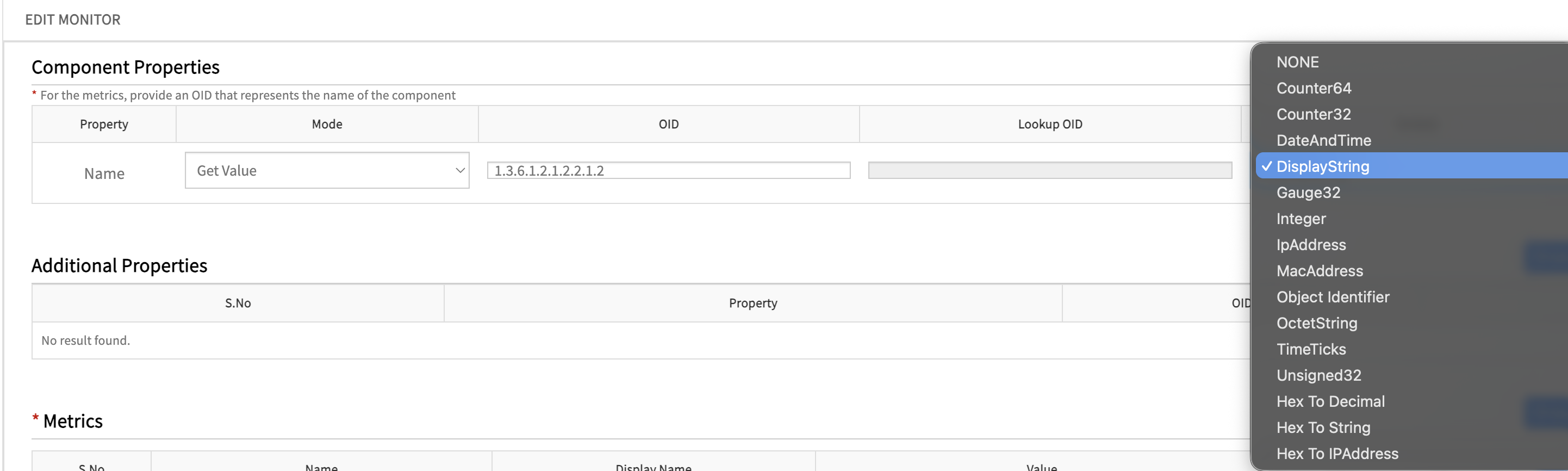
Defines the data type of the OID as specified in the MIB. Select the data type based on the OID’s base syntax as defined in the MIB.
When a Lookup OID is used, the data type of the Lookup OID must be specified in this section.
Additional properties
The Additional Properties section allows you to define custom parameters that can be reused in Data Collection Rules. These properties help in filtering components or including/excluding specific components from monitoring based on defined conditions.
Note
Define Additional Properties only when they are required for use in Data Collection Rules. If no filtering or rule-based selection is needed, it is not necessary to configure Additional Properties.To add an Additional property:
- Click on +Add.
- Enter the required details.
- Click Add to save the details.
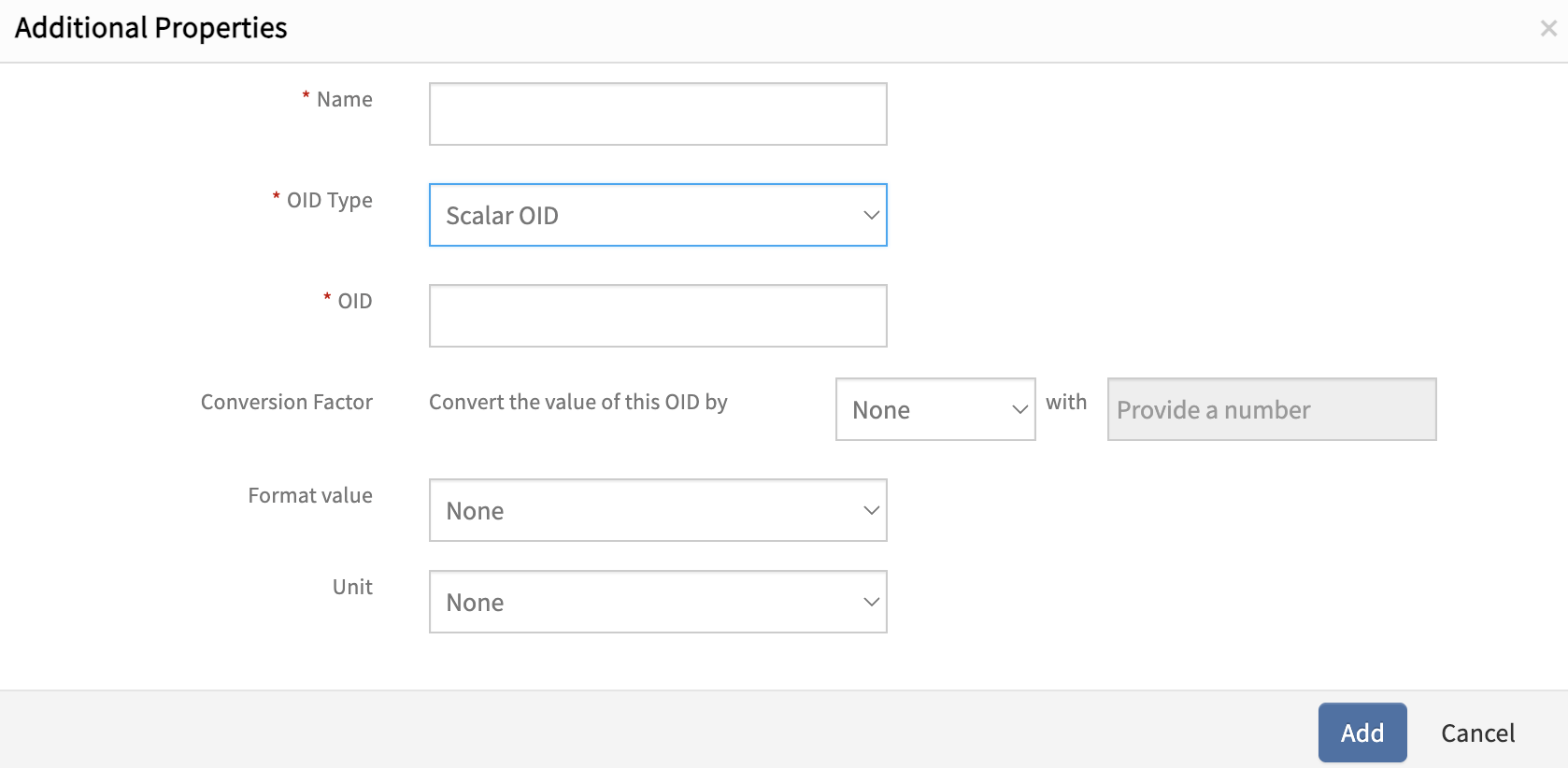
Multiple properties can be configured based on monitoring requirements.

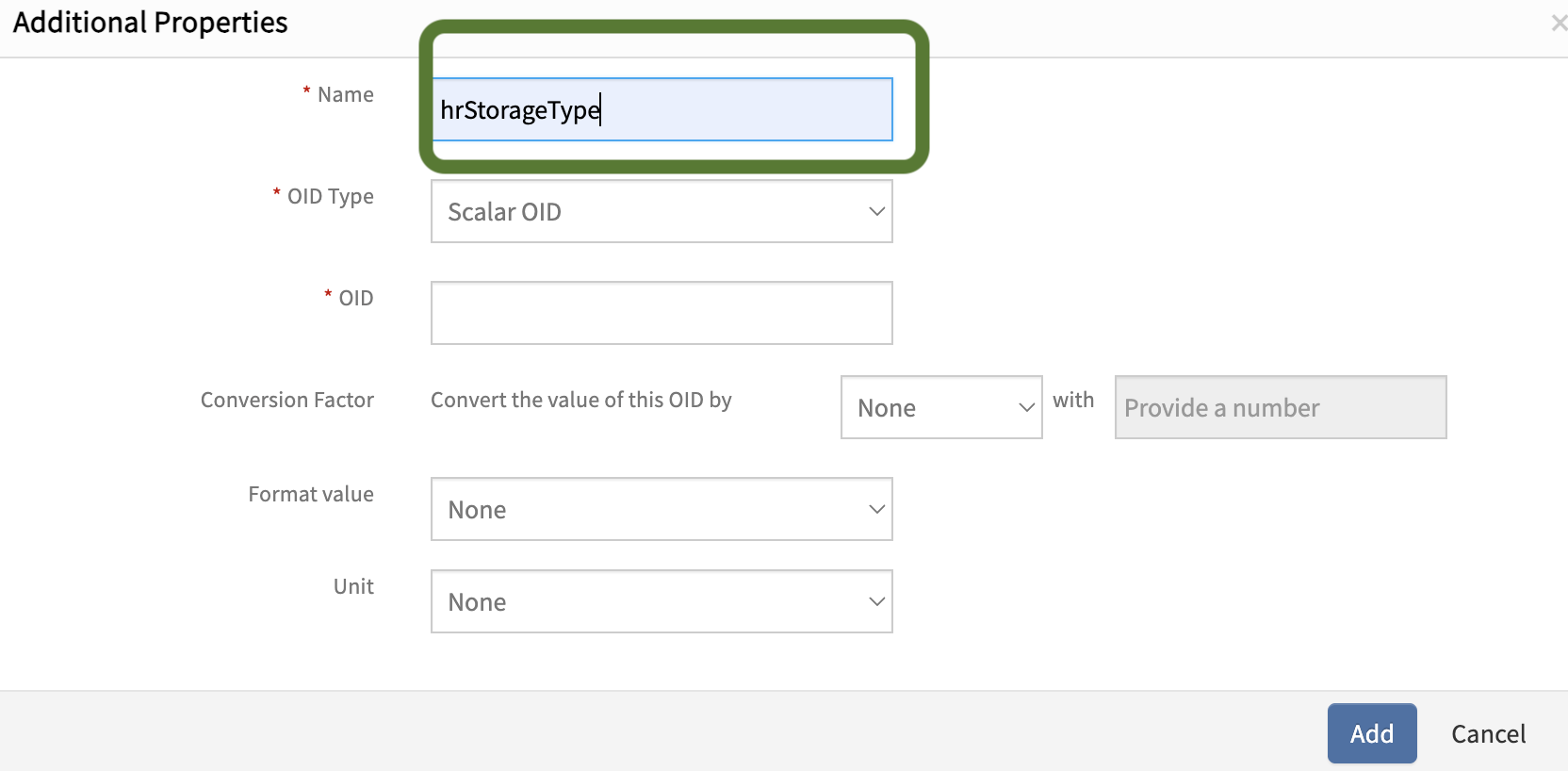
Name
Specifies the Object Name of the OID, which helps in clearly identifying the parameter during configuration and usage.
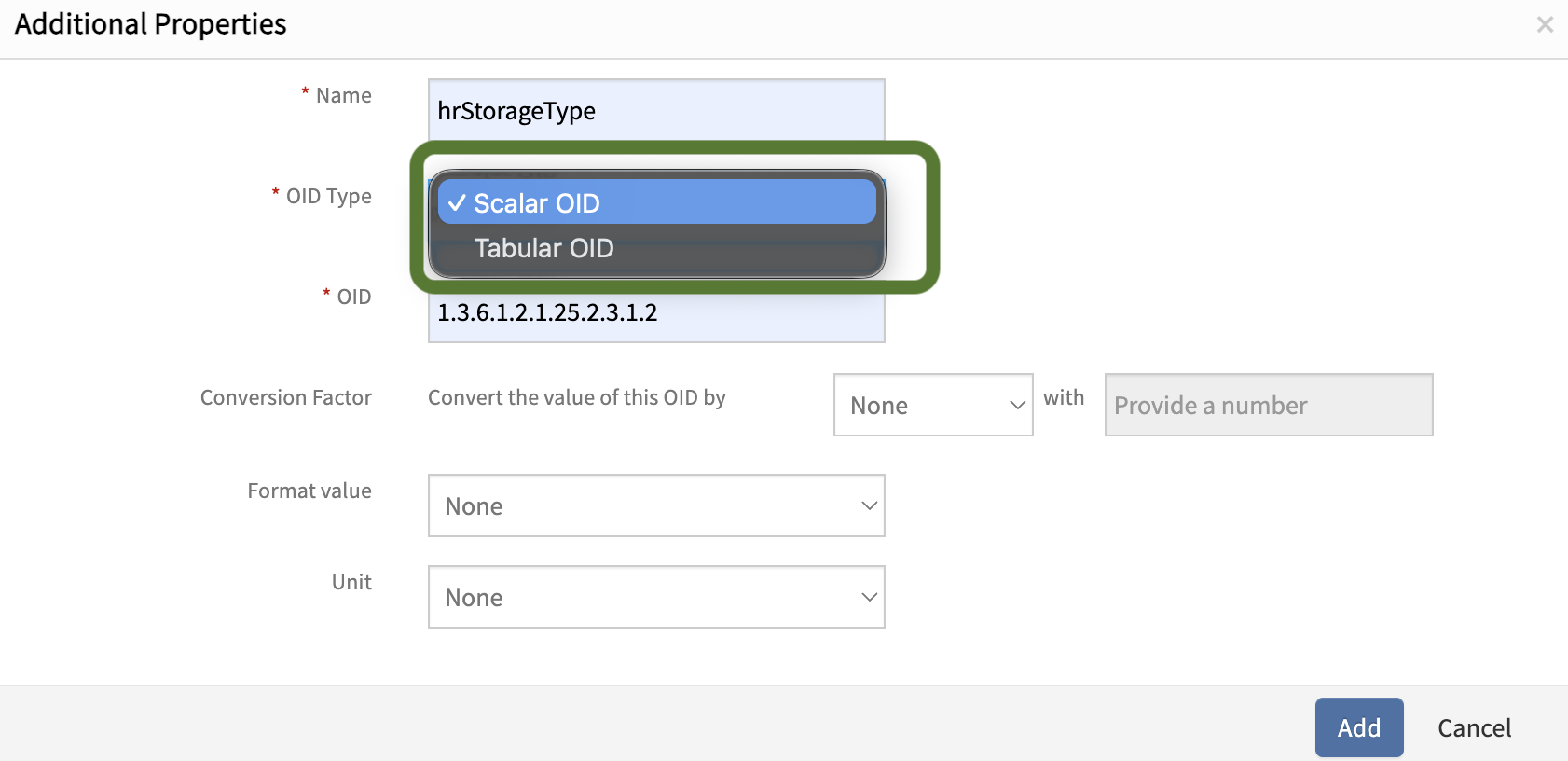
OID Type
Defines the type of OID:
- Scalar OID – Represents a single value
- Tabular OID – Represents multiple values indexed in a table
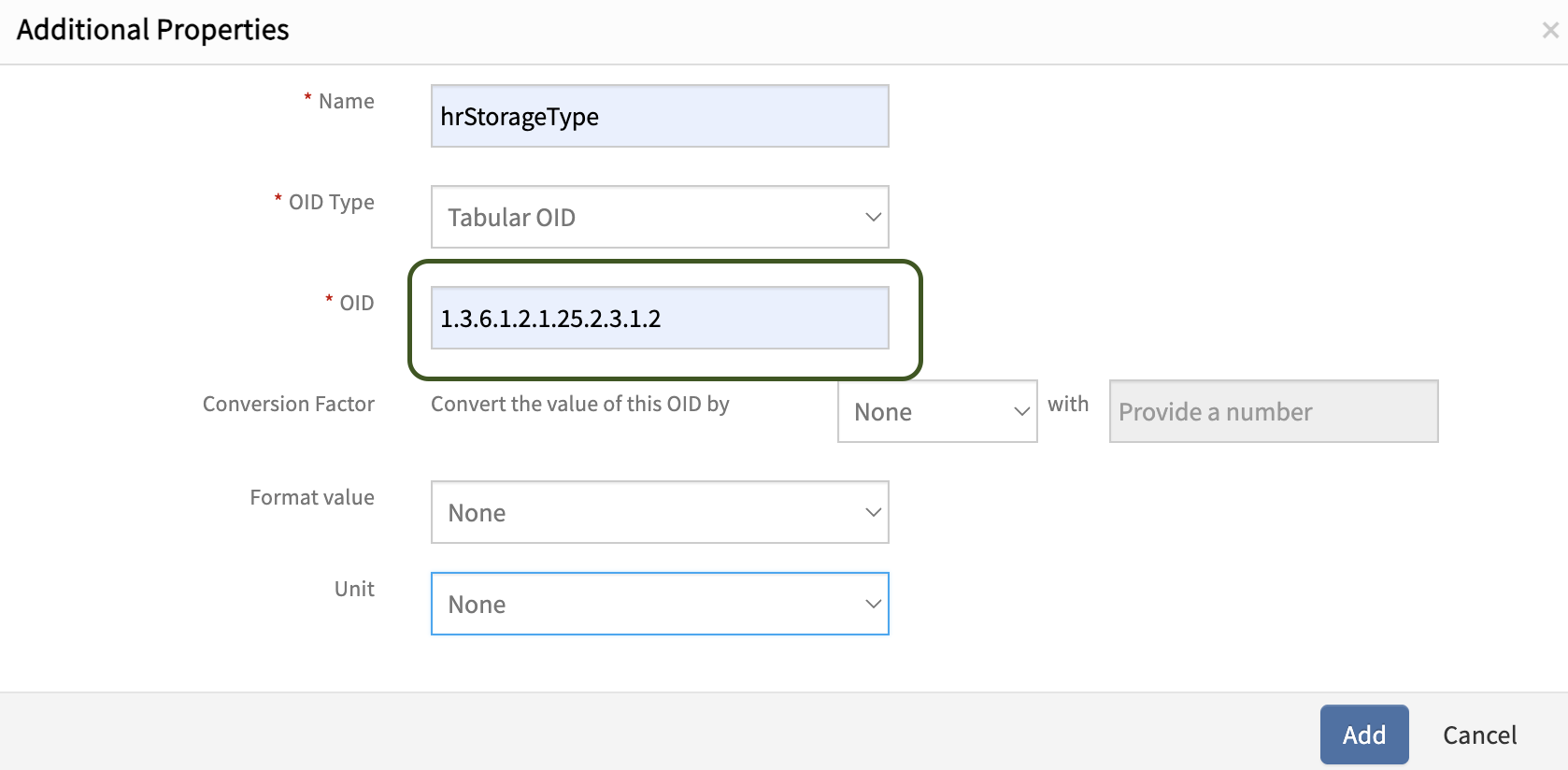
OID
Enter the Component OID to associate this property with. This OID is used to fetch the required value.
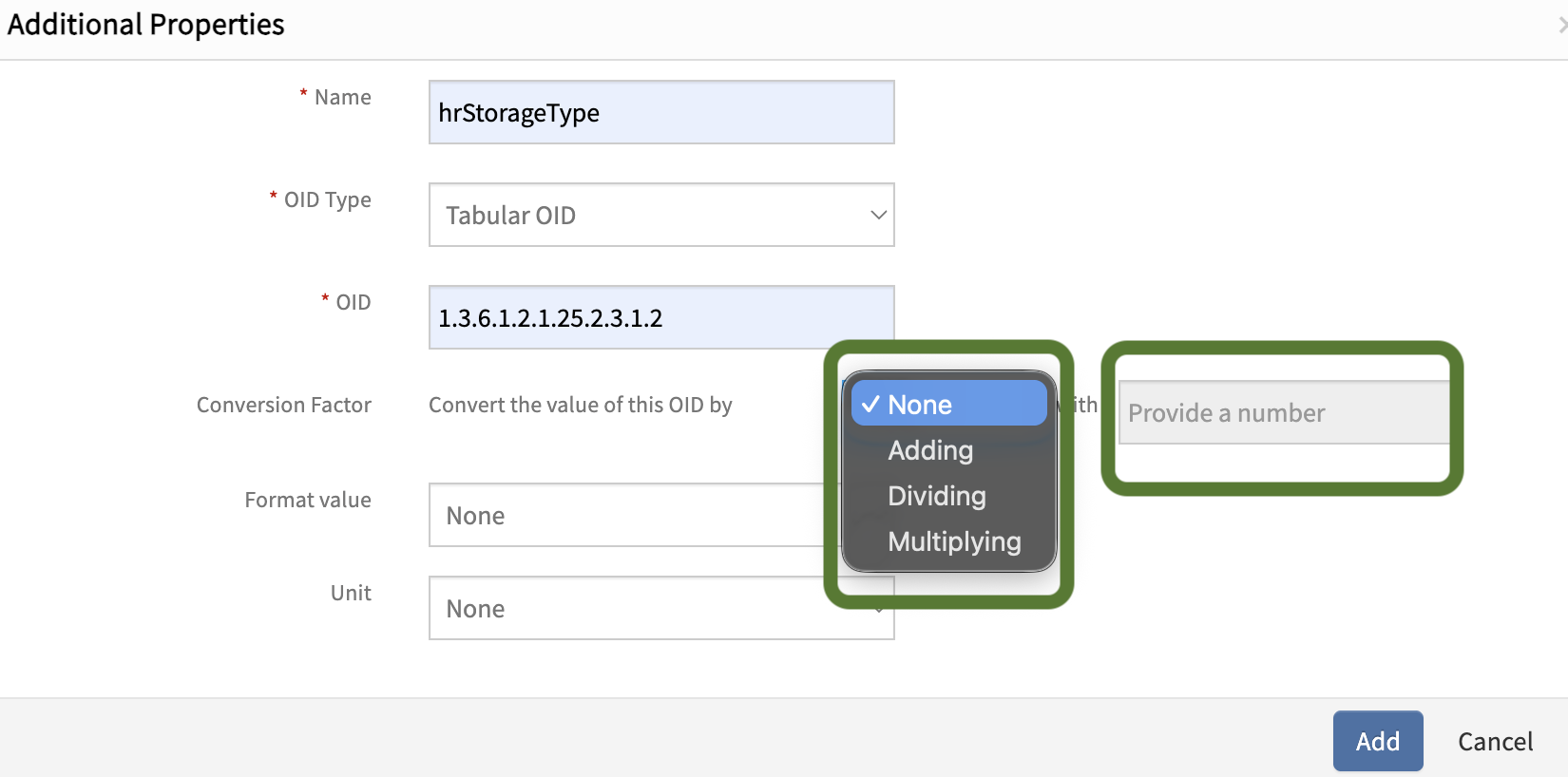
Conversion Factor
Applies transformation to the OID value before displaying or storing it. This is useful when the raw value needs scaling or adjustment.
Supported operations include:
- Adding
- Multiplying
- Dividing
Enter the required value in the “Provide a number” field to apply the selected operation.
Example:
- Convert milliseconds to seconds → Divide by 1000
- Increase a value by a fixed amount → Add a number
- Scale a value → Multiply by a factor
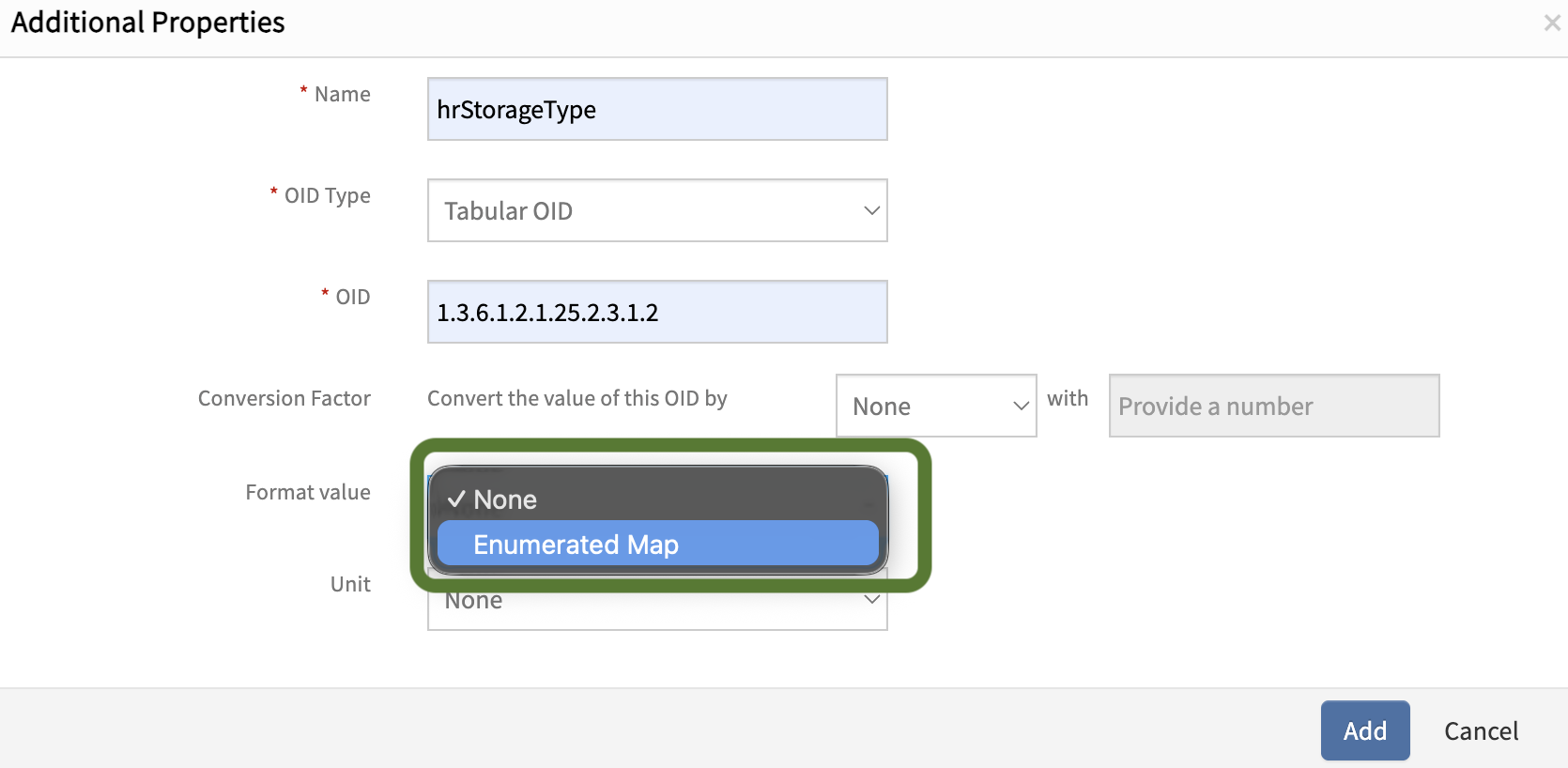
Format Value
Defines how the monitoring output should be interpreted.
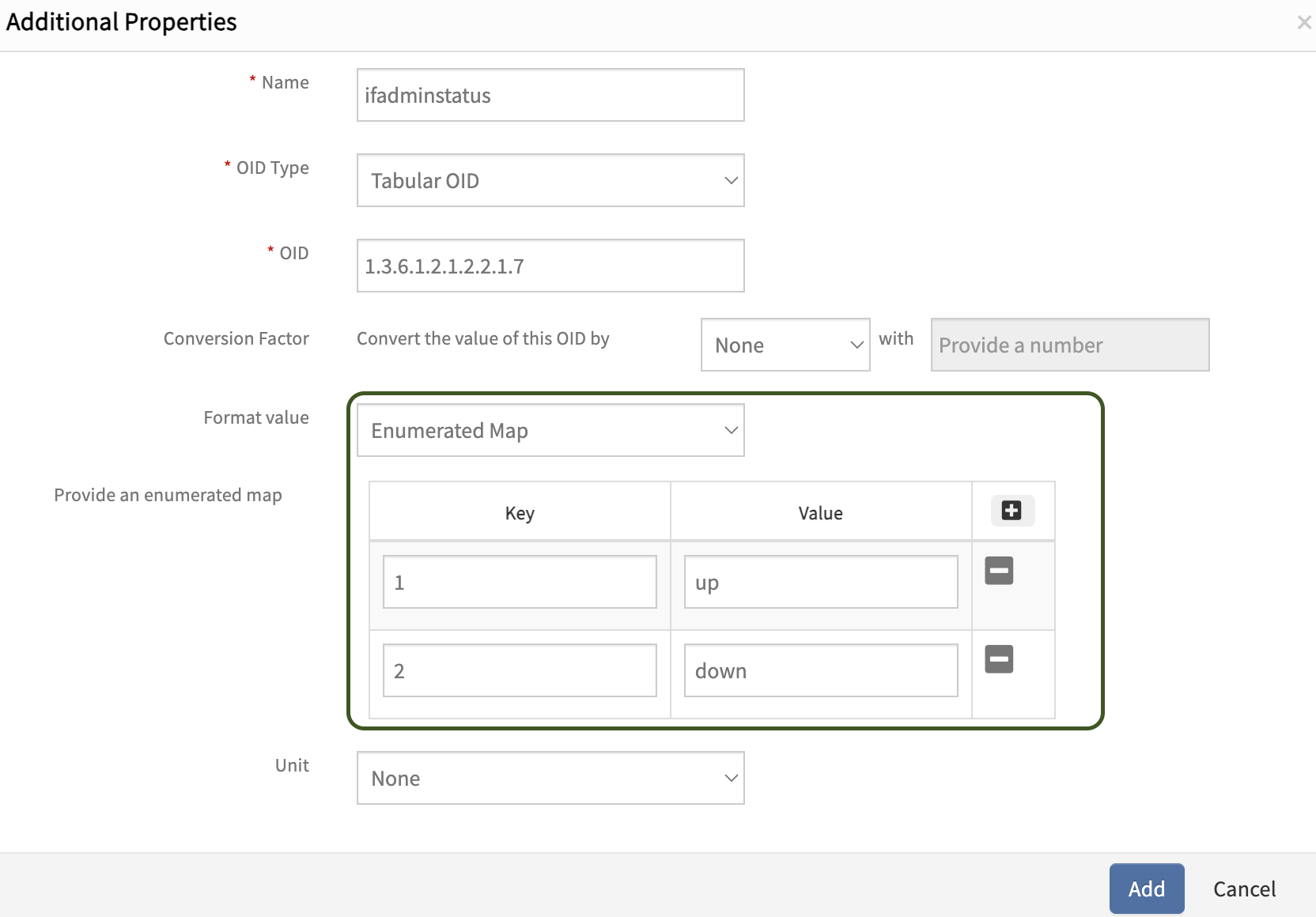
Enumerated Map
This option is used when the OID returns numeric values representing specific states or conditions. Instead of displaying raw numeric values, an enumerated map converts them into meaningful, human-readable text.
You need to define key-value pairs, where:
- Key = Actual numeric value returned by the OID
- Value = Descriptive label
Example:
1→ Up2→ Down3→ Testing
This improves readability and makes monitoring outputs easier to understand.
Provide an Enumerated Map
Defines the mapping of numeric values to descriptive text. Ensure all possible OID values are mapped to avoid undefined outputs.
Unit
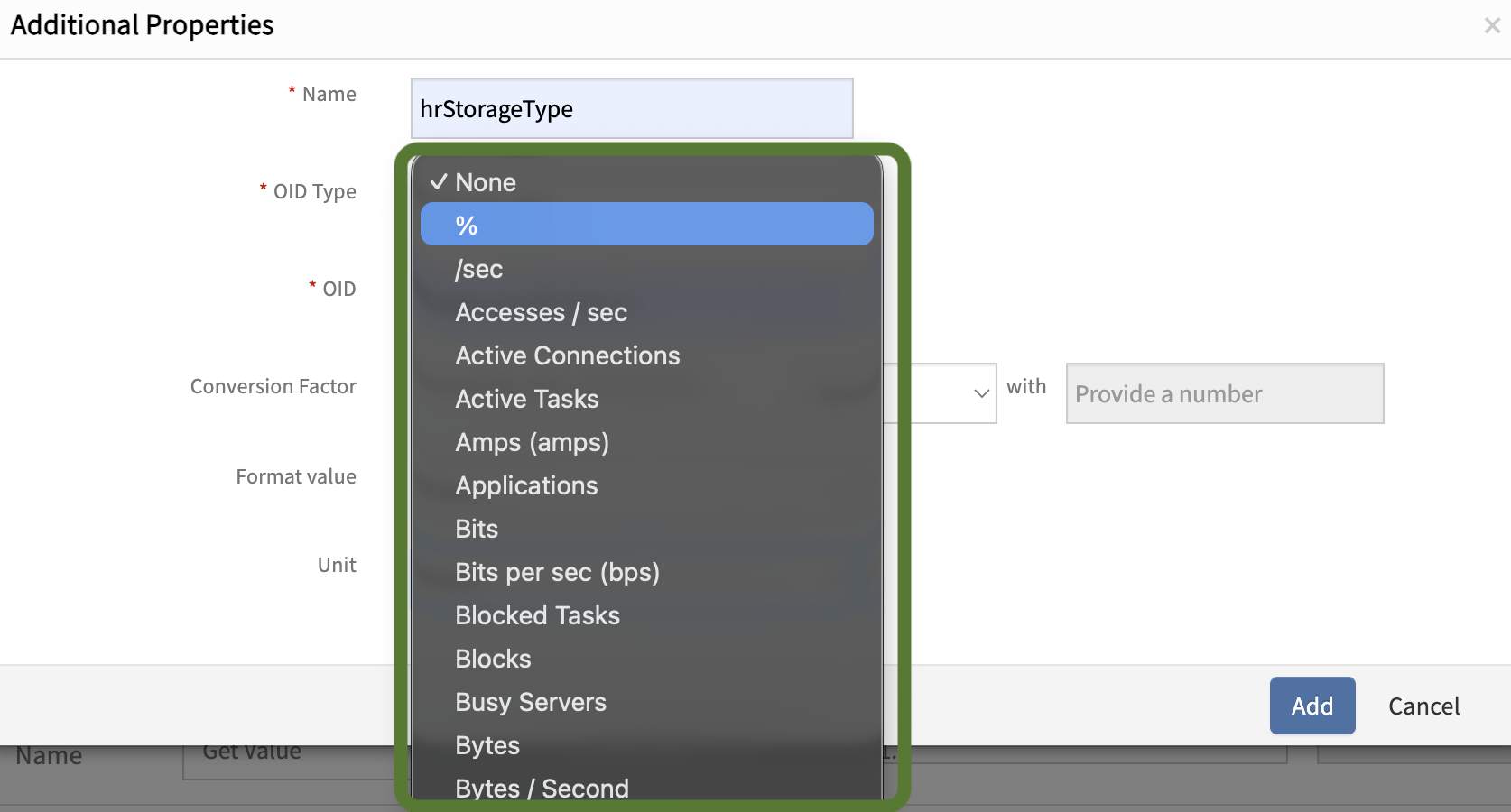
Specifies the measurement unit of the OID value (such as %, bytes, seconds, etc.).
Note
Skip the Unit field when Enumerated Map is selected, since the output will already be in descriptive text format rather than numeric values.