Syslog rules enable processing and generating alerts from Syslog events received from various devices, applications, and systems. They allow you to define how OpsRamp should react to specific log messages.
Create Syslog Rules
To create syslog rules:
Navigate to Setup > Account > Monitoring.
Select the Metrics & Events tab.
Select the Syslog Rules tab.
Click +ADD. The Add Syslog Rule page is displayed.
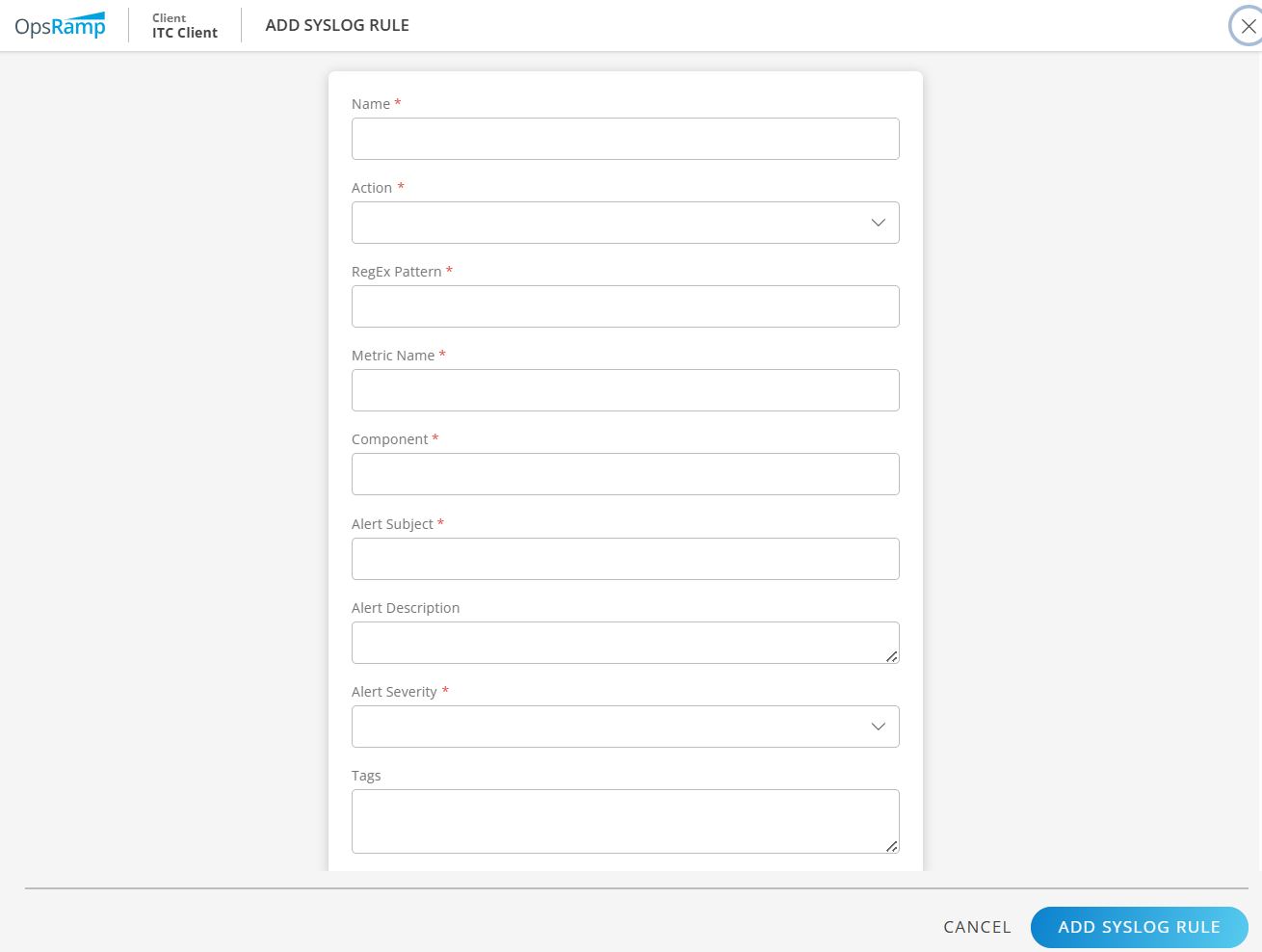
Enter values for the following fields:
Field Description Name Name of the syslog rule. Action Available options: Include and Exclude. RegEx Pattern The regular expression for search action. For example - .* Metric Name Enter the metric name. Component Name The component name to which the metric belongs. Alert Subject Short title for the alert generated when the syslog rule matches. Alert Description Detailed message for the alert, describing the matched syslog event. Alert Severity Available options: Warning, Critical, Info, or OK Tags Labels for grouping and filtering. Click Add Syslog Rule. The syslog rule is added and available in the listing page.
Filter Syslog Rules
To filter syslog rules:
Click the Filter drop-down on the top left corner of the Syslog Rules page. The filter options are displayed.
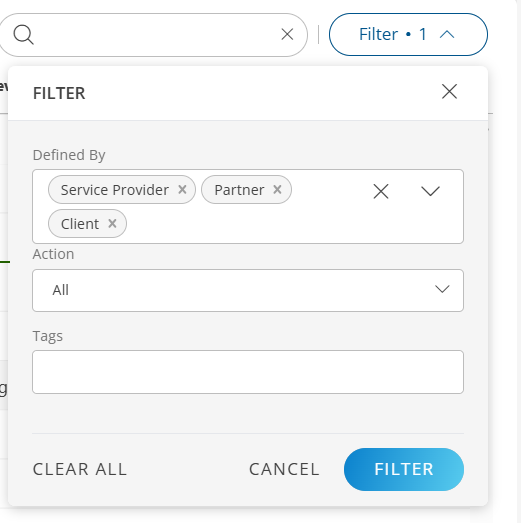
Select the items to narrow your search and then click Filter. The syslog rules that meet the filter criteria are displayed.